
Installation
Git-Zen installation is quick and easy. The app steps you through the process, and you are up and running in minutes.
First, install Git-Zen from the Zendesk Marketplace and authorize Zendesk. Then continue here to connect Azure DevOps.
Azure DevOps Authorization
Section titled “Azure DevOps Authorization”After you click “Allow” on the Zendesk authorization screen, Git-Zen takes you to the Microsoft sign-in screen. Git-Zen signs in with Microsoft Entra ID (formerly Azure Active Directory). If you are not signed in, Microsoft asks you to sign in.
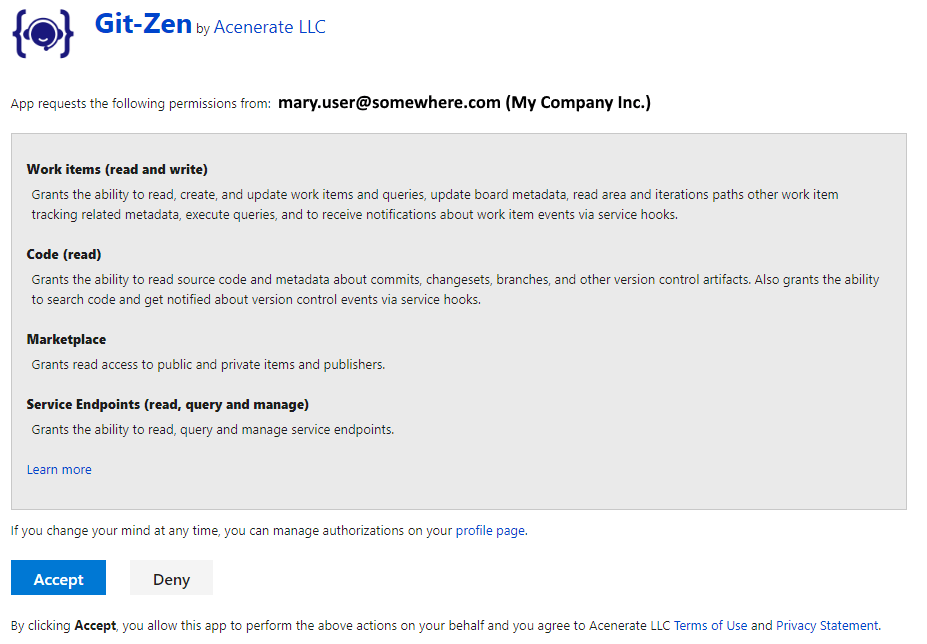
Sign in with the work or school account that you use for Azure DevOps. Then accept the permission request.
All Git-Zen actions in Azure DevOps use the account that signs in here. See Azure DevOps OAuth User. Many teams use a dedicated account, such as “Zendesk Integration”.
When the authorization finishes, a “Successful Authorization” window opens. Close it. Return to your Zendesk window and refresh it.
Check the Azure DevOps Organization
Section titled “Check the Azure DevOps Organization”You now see the full Git-Zen application in the app sidebar. A “settings” menu option appears.
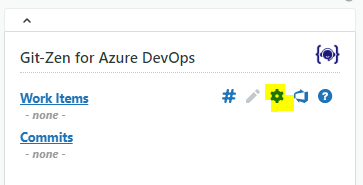
At the top of the settings screen is the Azure DevOps Organization field. Git-Zen uses this name to talk to your organization. The name is the part after https://dev.azure.com/ in your Azure DevOps address.
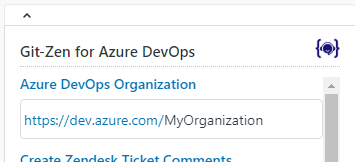
After authorization, Git-Zen fills in this field with the first organization that your account belongs to. If your account belongs to more than one organization, check that the name is correct. Change it if necessary, then click “Save Changes”. See Azure DevOps Organization.
Link Azure DevOps Projects with Webhooks
Section titled “Link Azure DevOps Projects with Webhooks”Return to the Git-Zen application in the app sidebar. An Azure DevOps “Webhooks” icon appears on the Git-Zen menu bar.
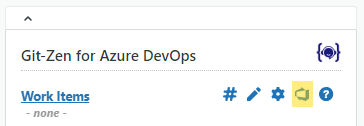
Click this icon to see the Azure DevOps projects in your organization. Select the projects you want active for Git-Zen, then click “Save Changes”.
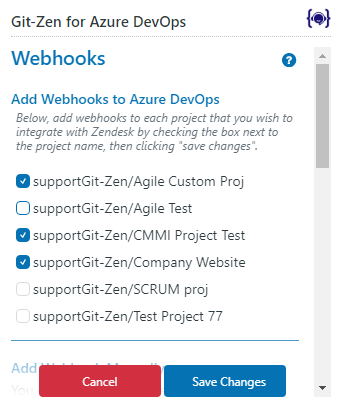
For each project you select, Git-Zen adds these service hooks to the project:
| Azure DevOps event | Git-Zen URL |
|---|---|
| Work item created | .../webhook/azuredevops/workitem/... |
| Work item updated | .../webhook/azuredevops/workitem/... |
| Work item deleted | .../webhook/azuredevops/workitem/... |
| Work item commented on | .../webhook/azuredevops/workitem/... |
| Code pushed (Git projects) | .../webhook/azuredevops/push/... |
| Code checked in (TFVC projects) | .../webhook/azuredevops/push/... |
When you clear a project and save, Git-Zen deletes its Git-Zen service hooks from that project.
Only selected projects appear in the drop-down lists when agents create or link work items.
You’re all set!
Section titled “You’re all set!”You are ready to begin using Git-Zen.