
Editing and Unlinking Items
Edit issue labels
Section titled “Edit issue labels”Full Version Only.
Git-Zen lets your agents add or remove labels on a linked issue. This helps your support desk route issues so your developers handle them properly.
This feature is available on GitHub, Linear, and Jira. It is disabled by default. An administrator must turn on Allow existing issue label editing in the Git-Zen settings. When the feature is off, the button does not show.
Click the small pencil icon at the end of the list of labels for the issue.
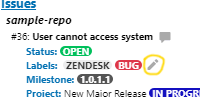
A window opens where you add and remove labels.
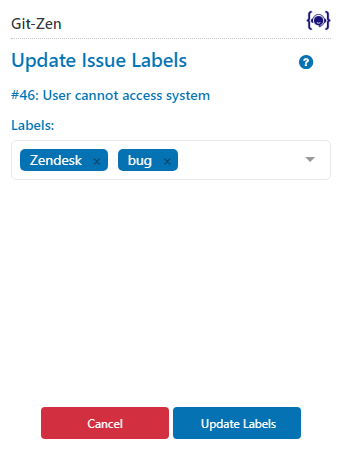
Select labels from the drop-down to add them. Click the x next to a label to remove it. When you finish, click Update Labels.
- Click the pencil icon at the end of the labels of the issue.
- Add or remove labels. The list has the team’s labels and the workspace labels.
- Click Update Labels.
Git-Zen replaces the issue’s labels with the labels you chose. Git-Zen does not create Linear labels. If you type a name that does not exist in Linear, Git-Zen leaves it off without an error.
Jira labels are global, not per project. Edit them from the linked work item, in the same way as on GitHub. An administrator must enable label editing in the settings.
Remove (unlink) items from the list
Section titled “Remove (unlink) items from the list”Full Version Only.
You may want to remove a linked issue, work item, commit, or affected file from the list in the Git-Zen app. Use the Edit Item Lists feature.
- Click the Edit button in the menu bar.
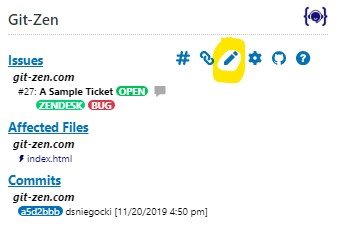
- Git-Zen goes into edit mode. Each list item shows the word REMOVE, blinking in red.
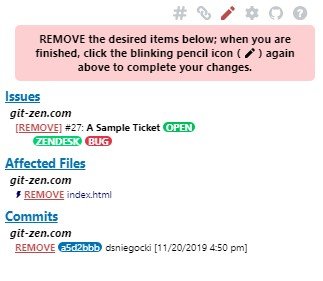
- Click REMOVE next to the item. Git-Zen asks you to confirm.
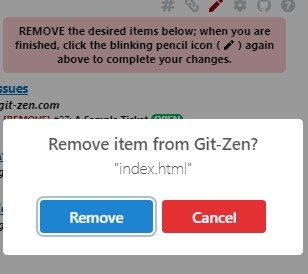
- Click Remove.
- Click the Edit button in the menu bar.
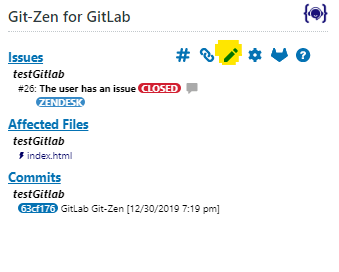
- Git-Zen goes into edit mode. Each list item shows the word REMOVE, blinking in red.
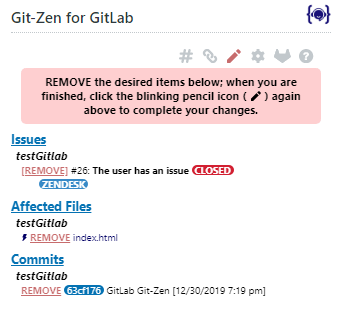
- Click REMOVE next to the item. Git-Zen asks you to confirm.
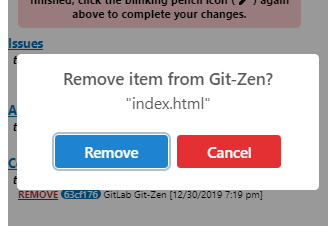
- Click Remove.
- Click the Edit button in the menu bar.
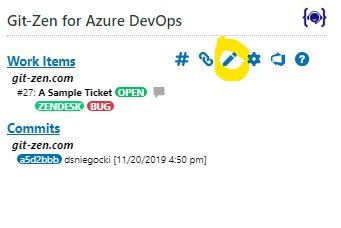
- Git-Zen goes into edit mode. Each list item shows the word REMOVE, blinking in red.
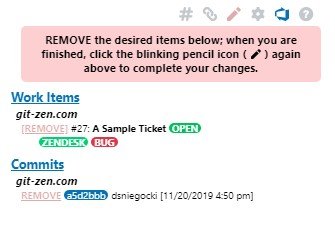
- Click REMOVE next to the item. Git-Zen asks you to confirm.
- Click Remove.
- Click the Edit button in the menu bar. Git-Zen goes into edit mode. Each list item shows the word REMOVE, blinking in red.
- Click REMOVE next to the item. Git-Zen asks you to confirm.
- Click Remove.
Git-Zen removes the gz# reference tag from the work item description. It does not delete the work item in Jira.
- Click the Edit button in the menu bar. Git-Zen goes into edit mode. Each list item shows the word [remove], blinking in red.
- Click [remove] next to the issue. Git-Zen asks you to confirm.
- Click Remove.
Git-Zen removes the gz# reference tag for this ticket from the issue description. The issue stays in Linear. Git-Zen never deletes or archives Linear issues.
You can also remove the gz# tag from the issue description in Linear. Git-Zen then stops updating the ticket from that issue. But the issue stays in the ticket’s list until you remove it in Git-Zen.
Repeat the steps for each item you want to remove. When you finish, click Edit in the menu bar again to save the changes to the ticket. Git-Zen leaves edit mode and the removed items no longer show in the list.
If Zendesk rejects the change, for example because a field that Zendesk requires to solve the ticket is empty, Git-Zen shows a Ticket not updated message with Zendesk’s reason. It then puts the list back as it was saved.