
Using a Personal Access Token
Some users have trouble with the OAuth token. Some companies have rules that do not allow an OAuth token. For these cases, Git-Zen lets you use a personal access token (PAT) instead.
This option is available for GitHub, GitLab, and Azure DevOps. You create the token on your platform, then add it to Git-Zen.
Create the token
Section titled “Create the token”GitHub offers “classic” and “fine-grained” personal access tokens. Both work with Git-Zen. We recommend the fine-grained token because it gives the best security and flexibility. For more information, see the GitHub documentation.
These steps create a fine-grained token.
-
Log in to github.com.
-
In the upper-right corner of any page, click your profile photo, then click Settings.
-
In the left sidebar, click Developer settings.
-
In the left sidebar, under Personal access tokens, click Fine-grained tokens.
-
Click Generate new token.
-
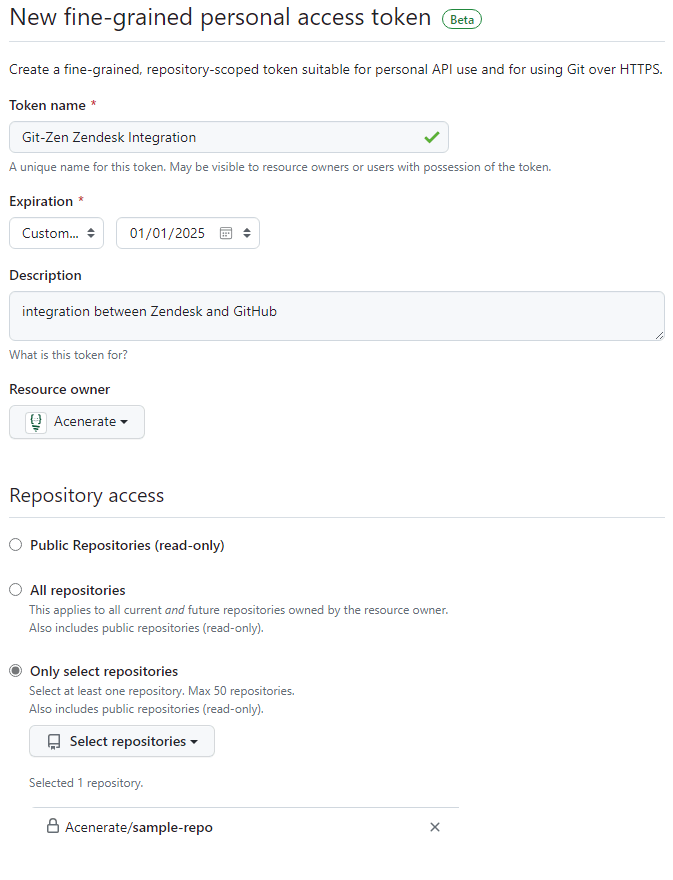
Under Token name, enter a name, such as “Git-Zen-Zendesk Integration”.
-
Under Expiration, choose how long the token lasts. When the token expires, you must create a new one and update it in Git-Zen.
-
Optional: under Description, describe the purpose of the token.
-
Under Resource owner, choose the owner. The token can access only resources that this owner owns. Organizations appear only if they opted in to fine-grained tokens. See Setting a personal access token policy for your organization.
-
Optional: if the owner is an organization that requires approval for fine-grained tokens, enter a justification for the request.
-
Under Repository access, choose which repositories the token can reach. Choose the minimum you need. Tokens always include read-only access to all public repositories. We suggest you select only the repositories that you want to connect to Zendesk with Git-Zen.
-
If you chose Only select repositories, pick them in the Selected repositories drop-down.
-
Under Permissions, grant these permissions:
Permission group Section Access Organization permissions Members Read Organization permissions Projects Read and write Repository permissions Metadata Read Repository permissions Issues Read and write Repository permissions Repository webhooks Read and write -
Click Generate token.
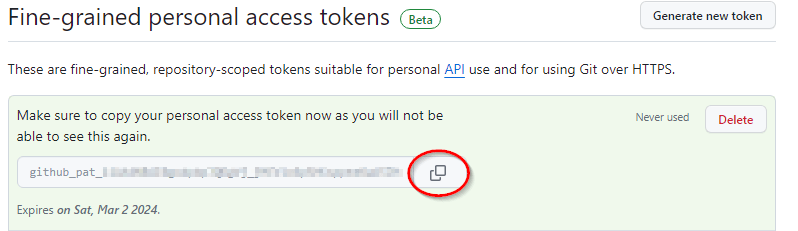
On the next screen, GitHub shows your token. Click copy. This is your only chance to copy it. If you miss it, you must create a new token.
For more information, see the GitLab documentation.
-
Log in to gitlab.com.
-
Click Edit Profile from your account button in the upper-left corner.
-
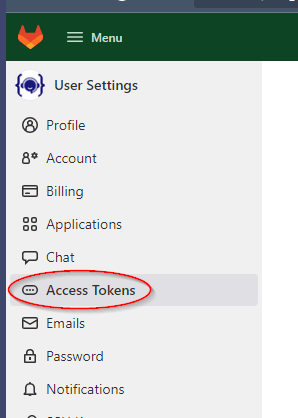
Choose Access Tokens in the left menu.
-
Enter the token details:
- Token name: Git-Zen
- Expiration date: leave blank
- Scopes: check only api
-
Click Create personal access token.
-
GitLab shows your token. Copy it now. You cannot get it from GitLab again.
For more information, see the Azure DevOps documentation.
- Log in to your account at Azure DevOps.
- From your home page, open user settings and choose Personal access tokens.
- Click + New Token.
- Name the token, choose the organization, and set how many days until it expires. Use these scopes:
- Code: read (only if you use Git-Zen for commits)
- Graph: read (for the list of organization users and for
@mentions) - Project and Team: read
- Work Items: read and write
- Azure DevOps shows your token. Copy it now. You cannot get it from Azure DevOps again.
Without Graph (Read), Git-Zen cannot list the organization’s users. The assignee list stays empty, and @ mentions do not work. Git-Zen does not use the Entitlements, Identity, or Member Entitlement Management scopes.
Git-Zen also uses the token to add the service hooks when you activate a project. If Azure DevOps does not let your token create service hooks, add them manually.
Add the token to Git-Zen
Section titled “Add the token to Git-Zen”- On the main Git-Zen screen, click the Webhooks menu button.
- Find the OAuth user section for your platform, for example “GitHub OAuth User”. Click Switch to Personal Access Token.
- Paste the token into the field that appears.
- Click Save Changes.
- Refresh your browser, or close the Zendesk ticket tab and open it again, to see the change.
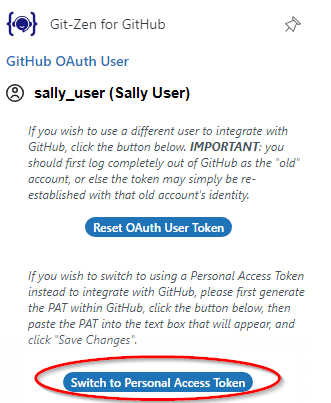
You can replace the token in Git-Zen with a different one at any time.