
Jira OAuth User
Git-Zen uses the Jira OAuth token for all of its actions in Jira.
About Jira OAuth
Section titled “About Jira OAuth”The OAuth user is the Atlassian account that authorized Git-Zen during the installation process. Git-Zen stores the token securely and uses it only for your Git-Zen account. Git-Zen renews the token automatically.
Every action Git-Zen takes in Jira shows as this user. Git-Zen sees only the projects and issues that this user can see. Jira also sends webhook events only for issues that this user can see.
Git-Zen uses the token to:
- List your projects, labels, statuses, and assignable users
- Register and delete one webhook for each selected project
- Create issues and list existing issues
- Add or remove the reference tag in an issue description
- Change the labels of a linked issue
- Add comments to issues
You can revoke Git-Zen’s access at any time. In Atlassian, open your account settings at id.atlassian.com and go to Connected apps.
Reassign or Recreate the OAuth Token
Section titled “Reassign or Recreate the OAuth Token”To check or change the Jira user that Git-Zen uses:
- From the main Git-Zen screen, click the Webhooks menu button.

- Scroll to the section titled Jira OAuth User. It shows the name of the current user.
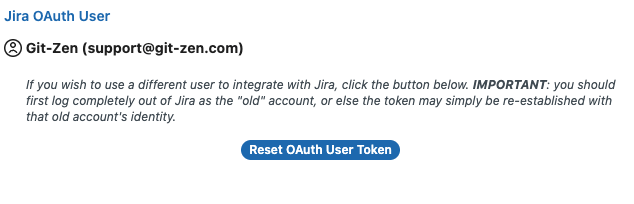
- To use a different user, first log out of Atlassian completely as the old user. Otherwise Atlassian may authorize the old user again.
- Click Reset OAuth User Token and follow the prompts.
Re-Authorize the OAuth Token
Section titled “Re-Authorize the OAuth Token”If the token was revoked, or Git-Zen lost access, re-create it from the Help section:
- From the main Git-Zen screen, click the Help menu button.
- Scroll to the section titled Reset Git-Zen OAUTH Token. Only Zendesk administrators see this section.
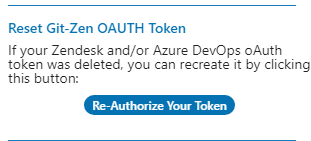
- Click Re-Authorize Your Token and follow the prompts.
If Jira reports missing permissions after a Git-Zen update, revoke Git-Zen in Connected apps first. Then re-authorize. Atlassian then asks you to approve the current set of permissions.