
The Git-Zen Sidebar
Open Git-Zen
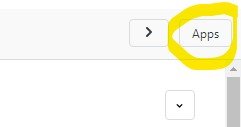
Section titled “Open Git-Zen”View any ticket in Zendesk. The Git-Zen app is in the apps sidebar on the right side of the ticket. If you do not see the apps, click the Apps button in the upper-right corner of the ticket.
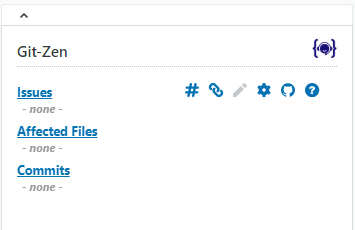
Git-Zen has several sections. Some items may be hidden. This depends on your settings and on your version of Git-Zen. You may want to use only some functions. For example, you may not want commit linking, or you may not want agents to link existing items. You can turn off (hide) sections in the Git-Zen settings.
The menu bar
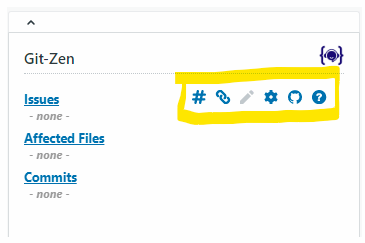
Section titled “The menu bar”The menu bar has icons for the actions you can take in Git-Zen. It only shows on the main screen. Some icons may be greyed out or hidden, depending on your settings and your permission level.
The menu bar does not show on a closed ticket. On a ticket that is not saved yet, the create and link buttons are not available.
Create issue or work item
Section titled “Create issue or work item” Creates a new issue or work item from the ticket. Git-Zen links the new item to the ticket. See Creating and Linking Issues. Full Version Only.
Link issue or work item
Section titled “Link issue or work item” Links an existing issue or work item to the ticket. See Creating and Linking Issues. Full Version Only.
Edit item lists
Section titled “Edit item lists” Lets you edit (un-link) the current items in each section for this ticket. See Editing and Unlinking Items. Full Version Only.
Settings
Section titled “Settings” Opens the settings and options for Git-Zen administrators.
Webhooks
Section titled “Webhooks” Adds and removes the webhooks that let your platform communicate with Git-Zen.
 Opens help, including how to contact support.
Tag/Label Sync
Section titled “Tag/Label Sync”Opens the Tag/Label Pairs configuration. Only users with the Administrator level see it.
Linked items section
Section titled “Linked items section”Full Version Only.
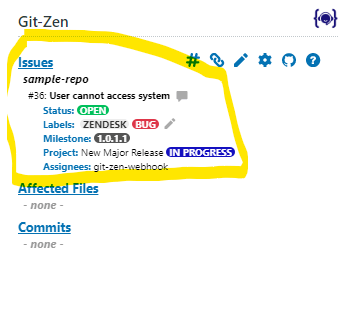
This section lists every GitHub issue linked to the Zendesk ticket. Each repository with linked issues shows as a header. Under it, Git-Zen lists each issue with its number and title. The title is a link to the issue in GitHub.
Under each issue, Git-Zen lists its status (Open or Closed), labels, projects, and assignees. It also lists the most recently assigned milestone, if there is one. You can choose which of these properties show in the settings.
The pencil icon at the end of the list of labels opens a window where you can edit the issue labels. This option is disabled by default. You can turn it on in the settings.
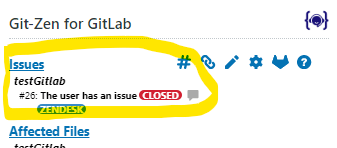
This section lists every GitLab issue linked to the Zendesk ticket. Each repository with linked issues shows as a header. Under it, Git-Zen lists each issue with its number and title. The title is a link to the issue in GitLab.
Next to each issue is its status (Open or Closed). Under the issue, Git-Zen can list its labels, milestone, weight, due date, and assignees. You can choose which of these properties show in the settings.
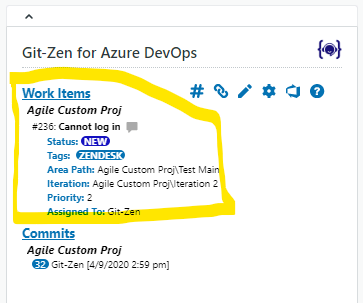
This section lists every Azure DevOps work item linked to the Zendesk ticket. Each project with linked work items shows as a header. Under it, Git-Zen lists each work item with its number and title. The title is a link to the work item in Azure DevOps.
Under each work item, Git-Zen can list details such as status, tags, area path, iteration, priority, severity, target date, created date, and assignee. You can choose which of these properties show in the settings.
This section lists every Jira issue linked to the Zendesk ticket. Each project with linked issues shows as a header. Under it, Git-Zen lists each issue with its key and title. The title is a link to the issue in Jira.
Under each issue, Git-Zen can list its status, labels, priority, assignee, and due date. You can choose which of these properties show in the settings.
This section lists every Linear issue linked to the Zendesk ticket. Each team with linked issues shows as a header. Under it, each row shows:
- The issue identifier and title, for example
ENG-42. Click it to open the issue in Linear. - Status: the workflow state. See workflow states.
Depending on your settings, the row can also show the labels, milestone, project, priority, assignee, due date, and Weight (the Linear estimate). The row does not show the cycle.
Add a comment to the issue or work item
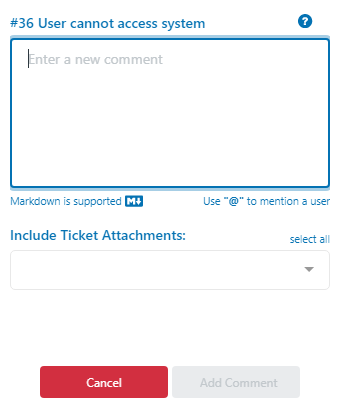
Section titled “Add a comment to the issue or work item”Each linked item has a small grey comment-bubble icon at the end of its line. Click it to open a window where you add a comment directly to the issue or work item.
On GitHub, Jira, and Linear, a pencil icon next to the labels opens a window where you edit the labels. An administrator must turn this on.
Affected files section
Section titled “Affected files section”Git-Zen shows this section for GitHub and GitLab.
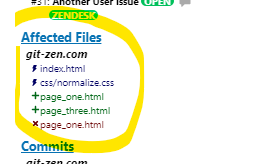
This section lists the repository files in any linked commit. When a commit includes a Git-Zen reference tag in its message, Git-Zen adds the files that commit changed to this list. Each repository with linked files shows as a header. Each file has a symbol that shows the action taken on it: altered, added, or deleted.
Affected commits section
Section titled “Affected commits section”Git-Zen shows this section for GitHub, GitLab, and Azure DevOps. Linear and Jira do not host code, so they have no commits.
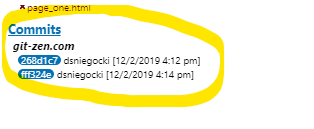
This section lists every linked commit. When a commit includes a Git-Zen reference tag in its message, Git-Zen adds the commit hash to this list. Each repository or project with linked commits shows as a header. Each commit shows the username of the person who made it and a timestamp. Each commit is a link to the commit details in your platform.
Messages at the top of the sidebar
Section titled “Messages at the top of the sidebar”- Git-Zen lost access to Zendesk. Git-Zen can no longer use its Zendesk token. A Zendesk administrator must click Re-authorize the app. Until then, updates from your platform do not reach Zendesk.
- Your trial period of the full version has expired, or This free version is limited to 5 list items. You use Lite. See Plans and billing.
- You have N days left in your trial. See Free trial.
A new linked item first shows in the list with its title in italics and the blinking status Linking. This placeholder changes to the real item when Git-Zen receives the event from your platform. If Zendesk rejects the update, the placeholder disappears and a Ticket not updated message gives Zendesk’s reason. If Git-Zen does not get a confirmation within 90 seconds, the status changes to Not confirmed and stops blinking. See Troubleshooting.