
Installation
Git-Zen installation is quick. The app steps you through the process.
First, install Git-Zen from the Zendesk Marketplace and authorize Zendesk. Then continue here to connect GitLab.
These steps are for GitLab.com. If you run your own GitLab server, see Self-hosted GitLab setup.
GitLab authorization
Section titled “GitLab authorization”After you click Allow on the Zendesk authorization screen, Git-Zen opens the GitLab.com authorization screen. If you are not signed in to GitLab, GitLab asks you to sign in.
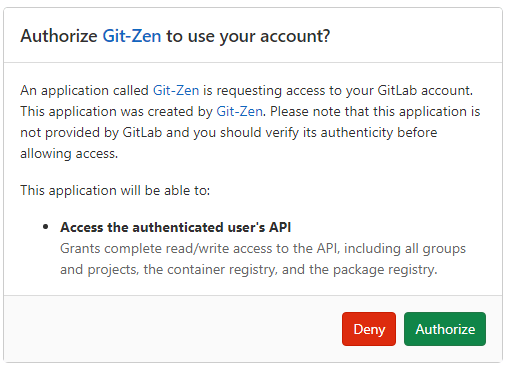
Git-Zen asks for the api scope. Git-Zen acts in GitLab as the user who authorizes it. See GitLab OAuth user.
When you authorize Git-Zen, the authorization window closes. Return to your Zendesk window and refresh it.
If your company does not allow OAuth apps, use a personal access token instead.
Link GitLab projects with webhooks
Section titled “Link GitLab projects with webhooks”You now see the full Git-Zen app in the sidebar. A Webhooks icon appears on the Git-Zen menu bar.
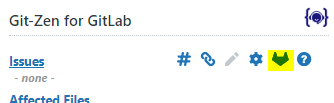
Click this icon to see your GitLab projects. Select the projects you want to use with Git-Zen, then click Save Changes.
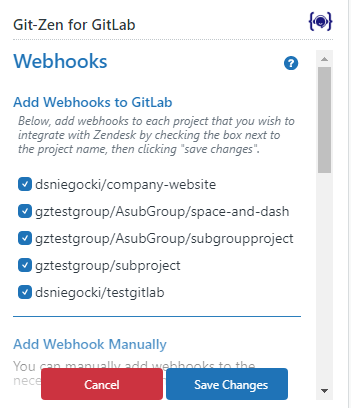
The list shows the projects the OAuth user is a member of, directly or through a group. Git-Zen hides archived projects. It lists up to 1,000 projects. See Group authorization if projects are missing.
Git-Zen creates one webhook in each selected project. The webhook sends these events: Push events, Issues events, Comments, Confidential issues events, and Confidential comments. See What syncs from GitLab.
You’re all set
Section titled “You’re all set”You are ready to begin using Git-Zen.