
Azure DevOps: Iteration and Area Path Filter
Full Version Only
When an agent creates a new work item in Git-Zen, they can assign an Azure DevOps Area Path or Iteration Path to it.
Show the fields
Section titled “Show the fields”In the settings, under “New work item fields”, set Iteration (Sprint) and Area Path to “visible”. You can also make each one “required”.
By default, the drop-down lists show every path in the selected project.
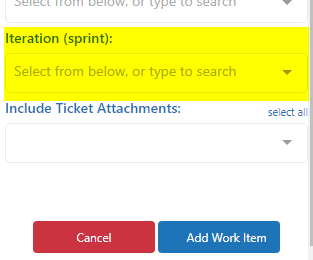
The current sprint
Section titled “The current sprint”Git-Zen checks the start and finish dates of each iteration. If today falls between them, Git-Zen puts [@cur] before the iteration name. Git-Zen selects a current iteration by default. When several nested iterations are current, it picks the deepest one. Git-Zen removes the [@cur] marker before it saves the work item.
Default Area Path
Section titled “Default Area Path”Next to the Area Path option, enter a Default Area Path. Git-Zen selects this path when an agent starts a new work item. The path must exactly match a path in the drop-down list, including the project name, for example ProductA\Alpha Team. If the path does not exist in the selected project, Git-Zen leaves the field empty.
Disable Area and Iteration editing
Section titled “Disable Area and Iteration editing”Turn on Disable Area and Iteration editing to stop agents from changing these fields. Agents then see the default area path and the current sprint, but cannot change them. The fields must be “visible” for this to work.
Filter the paths
Section titled “Filter the paths”The lists may contain paths that you do not want agents to choose. You can limit each list to paths under certain root paths.
In the Git-Zen settings, scroll down to Iteration Path Filter and Area Path Filter:
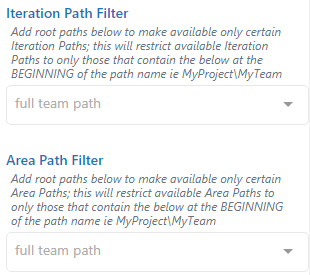
Enter one or more full root paths. Press Enter after each one. A path stays in the list only if it starts with one of the root paths. The match ignores case and works on whole path segments. The root path itself also stays in the list.
Each path starts with the project name. One filter applies to every project, so include a root path for each project. For example, to show only the “Alpha Team” iterations for the projects “ProductA” and “ProductB”, enter:
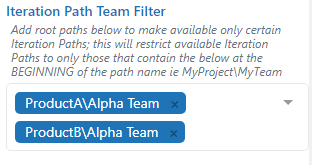
The list then shows iterations such as:
ProductA\Alpha Team\Sprint 16ProductA\Alpha Team\Sprint 17ProductB\Alpha Team\Sprint 16