Settings and Options
You reach almost all Git-Zen settings with the Settings button on the Git-Zen menu bar.
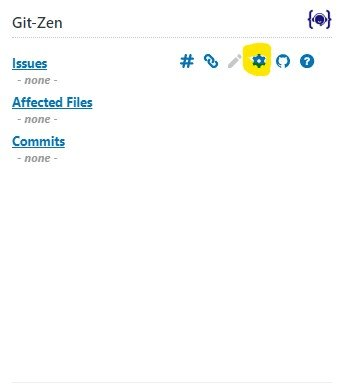
Click Settings, make your changes, then click Save Changes. To leave without saving, click Cancel.
Git-Zen stores one set of settings for each Zendesk account. If you install Git-Zen for more than one platform, for example GitHub and Linear, the apps share these settings.
The settings screen has these parts, from top to bottom:
- Create Zendesk Ticket Comments and Send comments to linked issues: see Ticket comments
- Comment sync filters: see Comment filters
- Zendesk Hyperlink, App Size, and Appearance: described below
- Enable Git-Zen Sections and Enable Git-Zen Features: described below
- Options and fields for new issues, label pickers, and the custom issue body: see Defaults and pickers for new issues
- Allowed Status for Creation: described below
- Tags for Linked Zendesk Ticket, closed-issue tags, and auto-solve: see Zendesk tags
- Default Labels for Linked Issues: see Defaults and pickers for new issues
- Zendesk Role Permissions: see Roles and permissions
Two settings live on other screens:
- Tag/Label Sync has its own button on the menu bar.
- Webhooks and the OAuth user have their own button on the menu bar.
Zendesk hyperlink
Section titled “Zendesk hyperlink”Full version only.
Turn on Add hyperlink to add a link back to the Zendesk ticket in each issue or work item that Git-Zen creates or links.
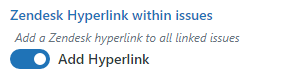
In Azure DevOps, the link goes into the “Links” section of the work item. In Jira, Git-Zen adds a line such as (related to Zendesk ticket #12345) to the description. On Linear, Git-Zen adds a line to the description: (created from Zendesk ticket #12345) on a new issue, or (related to Zendesk ticket #12345) on a linked issue. The ticket number is a link to the ticket.
App size and appearance
Section titled “App size and appearance”Full version only.
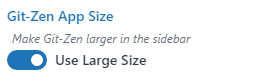
- Use large size: Git-Zen uses a “medium” size in the sidebar by default. This lets you see other Zendesk apps at the same time. Turn this on to show Git-Zen larger.
- Use dark mode: Shows Git-Zen in a dark color theme.
Enable sections and features
Section titled “Enable sections and features”Full version only.
You control which parts of Git-Zen your agents can use. For example, you can stop agents from creating new issues and let them link only to existing issues. Or you can hide the list of commits.
Enable sections
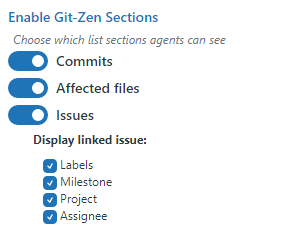
Section titled “Enable sections”Choose which lists appear on the main Git-Zen screen: Commits, Affected files (GitHub and GitLab), and Issues (or Work items). Under Display linked issue, choose which details show under each linked item, such as labels, milestone, project, priority, assignee, target date, and due date. The details you can choose depend on your platform. On Azure DevOps, Target Date has its own check box. It no longer follows the Created Date check box.
Enable features
Section titled “Enable features”These settings control what your agents can do.
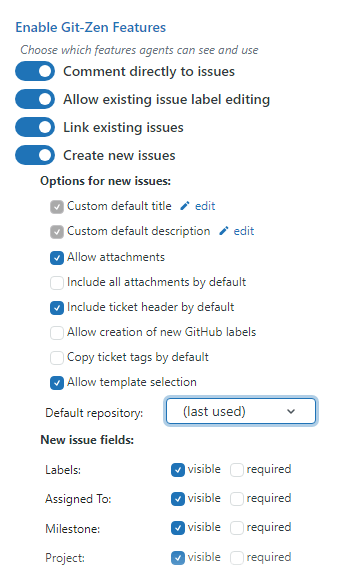
- Comment directly to issues: Shows or hides the comment button next to each linked issue.
- Allow existing issue label editing: Shows or hides the edit button next to the labels of each linked issue. Available on GitHub, Jira, and Linear. Off by default.
- Link existing issues: Shows or hides the Link Issue button on the menu bar. Even with this off, you can still link an item with a Git-Zen reference tag.
- Create new issues: Shows or hides the Create Issue button on the menu bar.
Under Options for new issues:
- Custom default title and Custom default description: See below.
- Allow attachments: Lets agents add attachments from the Zendesk ticket to a new issue. Not available on Linear.
- Include all attachments by default: Selects all ticket attachments when an agent creates a new issue.
- Embed inline images in issue body: Puts images from the ticket into the issue description, instead of listing them as attachments. This works only when you do not use a custom default description or a custom body format.
- Include ticket header by default: Checks Include Zendesk Ticket Header on the create form. See Creating and linking issues.
- Allow creation of new labels (or tags): If an agent enters a label that does not exist, Git-Zen creates it. If you turn this off, agents must choose from existing labels. On Jira and Linear, this setting has no effect. Agents can type a new label, but Git-Zen leaves it off the new issue. Git-Zen does not create Jira or Linear labels.
- Copy ticket tags by default: Adds all tags from the Zendesk ticket to the labels or tags of the new issue.
- Allow template selection: If your platform has issue templates, agents can choose one. This option does not show for Jira.
Some options differ by platform.
- Default repository: Sets the repository that new issues use by default. Choose (last used) to use the agent’s last repository.
- New issue fields: Controls whether agents see the labels, assignee, milestone, and project fields on the create form, and whether they must fill them in.
- Project (in New issue fields): When it is visible, agents can add new issues to a GitHub project. If Git-Zen asks you to reconnect GitHub, do so to grant the project permission.
- Default project: Sets the project that new issues use by default.
- New issue fields: Controls whether agents see the labels, assignee, milestone, and due date fields, and whether they must fill them in.
- Default project and Default work item type: Set the project and work item type that new work items use by default.
- New work item fields: Controls whether agents can set fields such as priority, severity, parent, related work items, tags, assignee, iteration, and area path, and whether they must.
- Default Area Path: Sets an area path for every new work item. If the path is not valid for a project, Git-Zen does not fill it in.
- Disable Area and Iteration editing: Stops agents from changing the iteration and area path from the defaults (the current iteration and the default area path).
- Filter which paths are shown: See Iteration and Area Path Filter.
- Add Custom Field: See Custom Work Item Fields.
- Available Work Item Types and Exclude Work Item Statuses: Limit which types and statuses agents see.
- Default project: Sets the project that new issues use by default. There is no default issue type. Git-Zen always creates a Task.
- New issue fields: Controls whether agents see the labels, assignee, priority, due date, estimate, and status fields, and whether they must fill them in. Git-Zen does not send the estimate or the status to Jira.
- The label option is named Allow creation of new Jira labels. It has no effect. See above.
- Default team: Sets the team that the create form selects first. Choose (last used) to select the team the agent used last.
- New issue fields: Controls whether agents see the priority, parent, labels, assignee, milestone (project milestone), due date, estimate, cycle, status, and project fields, and whether they must fill them in. The estimate cannot be required. The Milestone list loads after the agent chooses a project.
- Display linked issue: You can show the labels, milestone, Weight (the Linear estimate), project, priority, assignee, and due date. The row always shows the issue identifier, the title, and the workflow state. It never shows the cycle.
- Copy ticket tags by default: Git-Zen applies only the tags that match an existing Linear label.
- Allow template selection: Shows the team’s Linear templates on the create form. Git-Zen does not yet copy the template’s title, description, or fields into the form.
Linear has no commits or pull requests, and Git-Zen does not send ticket attachments to Linear. These settings show on the screen but have no effect on Linear:
- Upon commit push and its options
- The Commits section toggle
- Allow attachments and Include all attachments by default
The Help screen also shows a manual webhook URL. You do not need it. Git-Zen creates the Linear webhook for you.
Custom default title and description
Section titled “Custom default title and description”Click edit next to Custom default title or Custom default description to set a default title, a default description, or both for new issues. Git-Zen uses these values instead of the ticket subject and the latest ticket comment. The description supports Markdown. A custom issue body format overrides the custom default description.
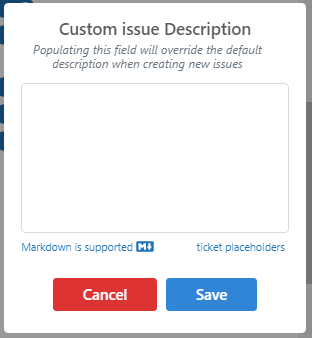
Click the “ticket placeholders” link to see the placeholders you can use:
| Placeholder | Value |
|---|---|
{{ticket.id}} |
Ticket ID |
{{ticket.subject}} |
Ticket subject |
{{ticket.description}} |
Ticket description |
{{ticket.priority}} |
Ticket priority |
{{ticket.requester.name}} |
Requester’s full name |
{{ticket.requester.email}} |
Requester’s email address |
{{ticket.organization.name}} |
Organization name |
{{ticket.assignee.name}} |
Assignee name, or NOT ASSIGNED |
{{ticket.comments}} |
Full ticket comments |
{{cf_field.label}} |
A ticket custom field |
{{of_field.title}} |
An organization field |
For a custom field, Git-Zen uses the field label in lowercase, with dots in place of spaces. For example, a field labeled “Customer Tier” becomes {{cf_customer.tier}}. The placeholder list shows the exact names for your account. Git-Zen removes any placeholder that has no value.
Allowed status for creation
Section titled “Allowed status for creation”Full version only.
Allowed Status for Creation limits issue creation to tickets with certain statuses. For example, choose open and pending. On a ticket with another status, the Create Issue button is not available. Leave the field empty to allow every status.
Export your configuration
Section titled “Export your configuration”At the bottom of the settings screen:
- Export Config downloads your Git-Zen settings as a JSON file.
- Export Tag Mappings downloads your tag/label mappings as a JSON file.
Git-Zen cannot import these files. Use them as a backup, or to copy settings by hand to another Zendesk account.
Tooltips
Section titled “Tooltips”Full version only.
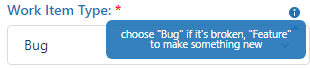
Your agents may not know what each field on the create form means. Tooltips let you explain these fields: Project, Parent, and on Azure DevOps also Work item type, Area Path, Iteration, Related work items, and custom fields. A field shows a tooltip only if it is on the create form for your platform. On Jira, only Project has a tooltip.
Create and edit a tooltip
Section titled “Create and edit a tooltip”Users with the Git-Zen Administrator level see an “edit” icon next to each field that supports a tooltip.
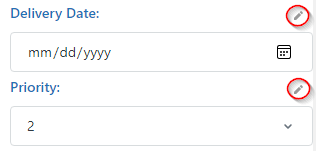
- Click the “edit” icon next to the field.
- Enter a description of up to 80 characters.
- Click Save.
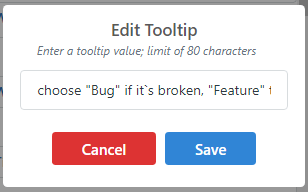
To change a tooltip, edit it the same way. To remove a tooltip, delete all of its text.
See a tooltip
Section titled “See a tooltip”Every agent who can create new issues sees a blue “information” icon next to the field.
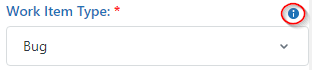
When the agent hovers over the icon, the tooltip appears.