Azure DevOps OAuth User
Git-Zen uses the Azure DevOps OAuth token for all of its actions in Azure DevOps.
About Azure DevOps OAuth
Section titled “About Azure DevOps OAuth”The OAuth user is the Microsoft Entra ID account that signed in during the installation process. Git-Zen stores the token securely and uses it only for your Git-Zen account. Git-Zen renews the token automatically.
Every action Git-Zen takes in Azure DevOps shows as this user. Many teams create a dedicated account for this, such as “Zendesk Integration”. Git-Zen sees only the organizations, projects, and work items that this user can see.
Git-Zen uses the token to:
- List your organization’s projects
- Add and delete service hooks (webhooks) on your projects
- Create work items and list existing work items
- Add the reference tag, tags, and Zendesk hyperlink to linked work items
- Add comments to work items
- Read project information, such as work item types, fields, area and iteration paths, templates, tags, and users
Reassign or Recreate the OAuth Token
Section titled “Reassign or Recreate the OAuth Token”To check or change the Azure DevOps user that Git-Zen uses:
- From the main Git-Zen screen, click the Webhooks menu button.
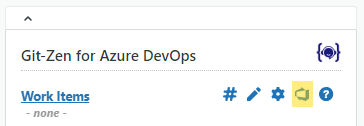
- Scroll to the section titled Azure DevOps OAuth User. It shows the name of the current user.
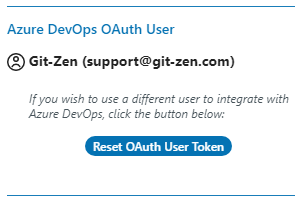
- To use a different user, first sign out of Microsoft completely as the old user. Otherwise Microsoft may sign in the old user again.
- Click Reset OAuth User Token and follow the prompts.
In the same section, you can click Switch to Personal Access Token to use a personal access token instead of OAuth. To go back, click Switch back to OAuth. Git-Zen then removes the personal access token.
Re-Authorize the OAuth Token
Section titled “Re-Authorize the OAuth Token”If the token was revoked, or Git-Zen lost access, re-create it from the Help section:
- From the main Git-Zen screen, click the Help menu button.
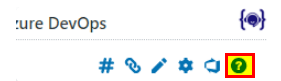
- Scroll to the section titled Reset Git-Zen OAUTH Token. Only Zendesk administrators see this section.
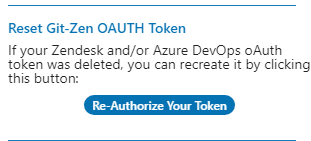
- Click Re-Authorize Your Token and follow the prompts.
The Webhooks screen also shows a Re-Authorize Your Token button when Git-Zen cannot see any projects.
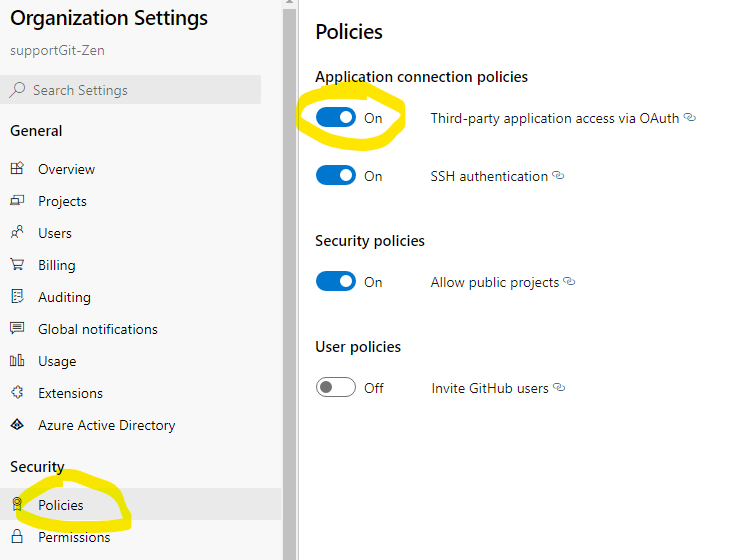
Organization Settings
Section titled “Organization Settings”If Git-Zen cannot see your projects after you authorize, see Organization Authorization.