
Azure DevOps: Organization Authorization
Sometimes you authorize Git-Zen, but the Webhooks screen shows no Azure DevOps projects. Check these causes in order.
1. Check the organization name
Section titled “1. Check the organization name”Open the Git-Zen Settings screen. Check that Azure DevOps Organization matches the part after https://dev.azure.com/ in your Azure DevOps address. Git-Zen fills it in with the first organization of the signed-in account, which may not be the one you want. See Azure DevOps Organization.
If the field is empty, the Webhooks screen tells you: “You must specify your Azure DevOps organization name in the settings screen.”
2. Check the account
Section titled “2. Check the account”The account that authorized Git-Zen must be a member of the organization. It must also have access to the projects. Git-Zen sees only what that account sees. See Azure DevOps OAuth User.
3. Check Microsoft Entra ID approval
Section titled “3. Check Microsoft Entra ID approval”Git-Zen signs in with Microsoft Entra ID. Your Entra ID tenant may require an administrator to approve new apps. If Microsoft showed “Need admin approval” during sign-in, ask your Entra ID administrator to approve Git-Zen. Then re-authorize.
4. Check the third-party OAuth policy (older installations)
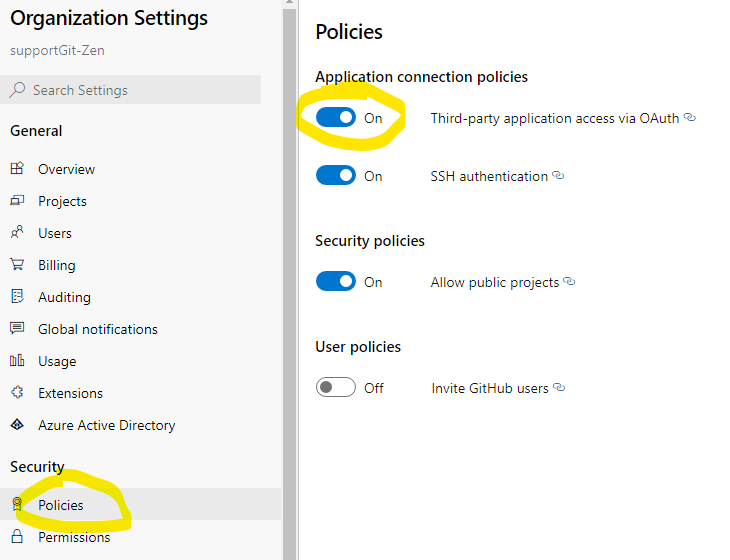
Section titled “4. Check the third-party OAuth policy (older installations)”Azure DevOps has an organization policy named “Third-party application access via OAuth”. Microsoft applies this policy to older Azure DevOps OAuth apps. Git-Zen now signs in with Microsoft Entra ID, which this policy does not control. If your Git-Zen token dates from before the move to Entra ID, re-authorize first.
If you still use an older token, turn on the policy:
- Within your organization settings, go to Security > Policies.
- Under Application connection policies, find “Third-party application access via OAuth” and turn it On.
5. Clear the cache
Section titled “5. Clear the cache”After you make a change, you may need to clear the repository cache to see your organization’s projects. Click Clear Repository Cache at the bottom of the Webhooks screen.
If you still cannot connect to your organization’s projects, contact Git-Zen support.