
Installing Git-Zen for Jira
Git-Zen installation is quick and easy. The app steps you through the process, and you are up and running in minutes.
First, install Git-Zen from the Zendesk Marketplace and authorize Zendesk. Then continue here to connect Jira.
Jira Authorization
Section titled “Jira Authorization”After you click “Allow” on the Zendesk authorization screen, Git-Zen takes you to the Atlassian authorization screen. If you are not logged in to Atlassian, you are asked to log in.
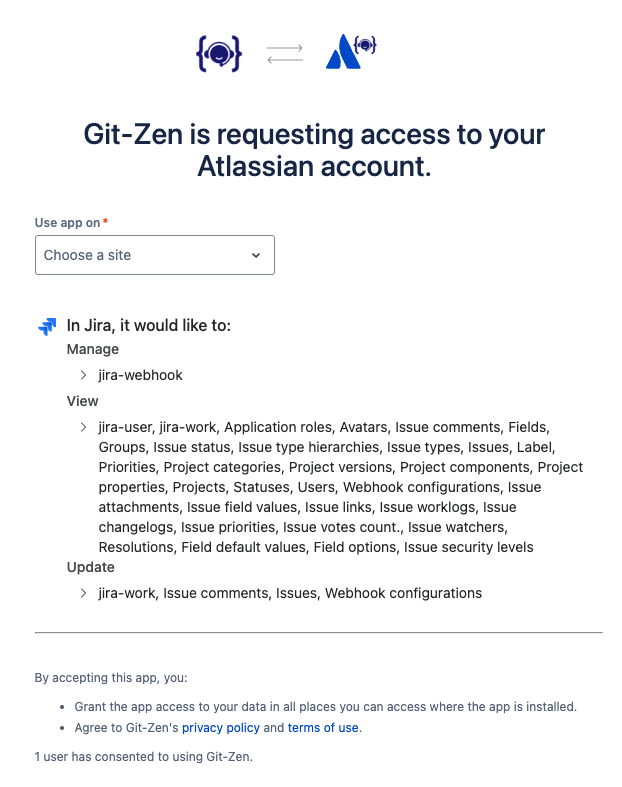
Choose the Jira site to use with Git-Zen, then click Accept.
All Git-Zen actions in Jira use the account that authorizes here. See Jira OAuth User. Many teams use a dedicated account, such as “Zendesk Integration”.
When the authorization finishes, a “Successful Authorization” window opens. Close it. Return to your Zendesk window and refresh it.
Link Jira Projects with Webhooks
Section titled “Link Jira Projects with Webhooks”Return to the Git-Zen application in the app sidebar. A “Webhooks” icon appears on the Git-Zen menu bar.

Click this icon to see the Jira projects that the OAuth user can see. Select the projects you want active for Git-Zen, then click “Save Changes”.
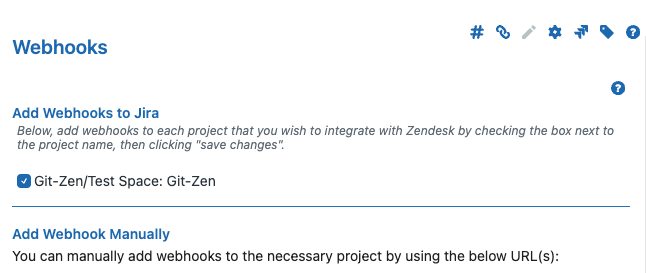
For each project you select, Git-Zen registers one Jira webhook through the Jira API. The webhook sends issue events (created, updated, deleted) and comment events (created, updated, deleted) for that project. When you clear a project and save, Git-Zen deletes its webhook.
Only selected projects appear in the drop-down lists when agents create or link issues.
You’re all set!
Section titled “You’re all set!”You are ready to begin using Git-Zen. To learn what Git-Zen can do with Jira issues, see Creating Jira Issues.