
Azure DevOps: Custom Work Item Fields
Full Version Only
You can add Azure DevOps work item fields to the form that agents use to create a new work item. This includes custom fields that you defined in Azure DevOps.
Adding a Field
Section titled “Adding a Field”To add a field, click Add Custom Field under the “New work item fields” options in the settings:
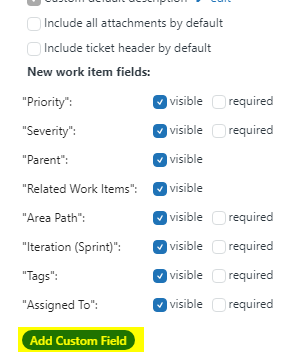
The “Custom Field Definition” dialog box appears:
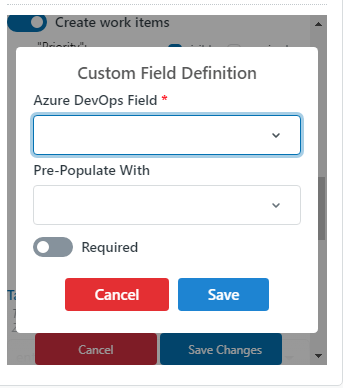
Select the Azure DevOps field from the drop-down list. The list shows each field by its reference name, for example Custom.ZendeskTicketNumber. It is sorted by reference name.
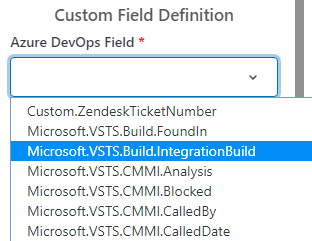
The list has all fields from your organization. Git-Zen leaves out fields that it handles in other ways or that Azure DevOps does not let you set. Examples are Title, Description, Tags, Assigned To, Area Path, Iteration Path, Severity, Work Item Type, and the board column fields.
Pre-populate a field
Section titled “Pre-populate a field”To fill in the field automatically when an agent starts a new work item, choose a value from the Pre-Populate With drop-down:
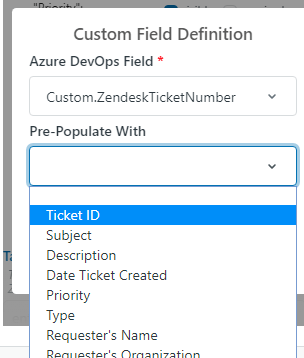
You can choose:
- (blank): Git-Zen uses the field’s default value from Azure DevOps, if it has one.
- FIXED VALUE: Enter a value. For dates, use the format
yyyy-mm-dd. Click ticket placeholders to insert a ticket placeholder, such as{{ticket.id}}. - A Zendesk ticket field: Ticket ID, Subject, Description, Assignee, Date Ticket Created, Priority, Type, Requester’s Name, Requester’s Organization, or one of your Zendesk custom ticket fields.
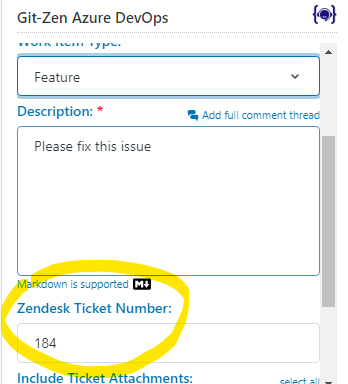
In this example, the custom field “Custom.ZendeskTicketNumber” gets the Zendesk ticket ID when an agent creates a new work item:
If a field has a list of allowed values, Git-Zen keeps the pre-populated value only when it matches an allowed value. The match ignores case. Otherwise the field starts empty.
Make a field required
Section titled “Make a field required”To make agents fill in the field before they can create a work item, check Required:
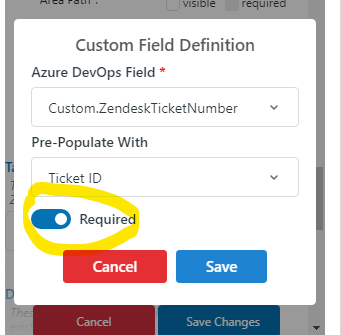
When you finish, click Save Changes at the bottom of the settings screen. The field then appears on the “Create Work Item” screen.
How Fields Appear on the Create Work Item Screen
Section titled “How Fields Appear on the Create Work Item Screen”- A field appears only if it exists for the selected project and work item type (for example, “Bug”).
- A field with a list of allowed values shows as a drop-down list.
- A “Yes/No” (boolean) field shows as a toggle. It is never required.
- A date field shows a date picker.
- A person (identity) field shows a drop-down list of the project’s users.
- A multi-line (HTML) field shows a large text box.
- Any other field shows a one-line text box.
- If Azure DevOps marks a field as always required, Git-Zen also makes it required, whatever your Git-Zen setting is.
- If a field has a default value in Azure DevOps, Git-Zen selects it when it can.
Editing a Field
Section titled “Editing a Field”To change a field that you already added, click the edit link next to the name of the field:
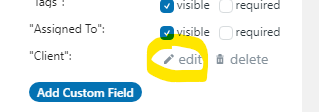
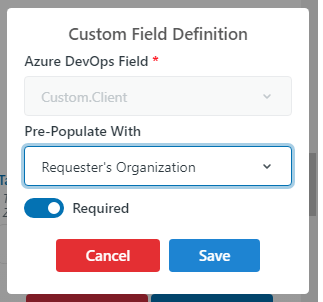
The “Custom Field Definition” dialog opens. You can change the “Pre-Populate With” and “Required” settings. You cannot change the field itself. To use a different field, delete this one and add a new one.
Deleting a Field
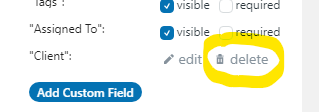
Section titled “Deleting a Field”To delete a field, click the delete link next to the name of the field:
Custom Fields When You Link a Work Item
Section titled “Custom Fields When You Link a Work Item”When an agent links an existing work item, Git-Zen does not show your custom fields.
Custom Issue Body Format
Section titled “Custom Issue Body Format”By default, Git-Zen fills the description of a new work item with the latest Zendesk ticket comment. You can replace this with a body that you build from ticket fields and fixed text.
Find Custom Issue Body Format at the end of the “New work item fields” options in the settings.
- Click Add Body Row.
- Choose the Row Type:
- Ticket Field: Choose a Zendesk Field. Optionally, enter a Label Prefix, such as
Priority:. Git-Zen puts the prefix before the field value. Turn on Hide row when field is empty to leave out the whole row when the ticket has no value. - Free Text: Enter up to 500 characters of text, such as
--- Customer Info ---.
- Ticket Field: Choose a Zendesk Field. Optionally, enter a Label Prefix, such as
- Click Save.
- Use the arrow buttons to change the order of the rows. Use edit and delete to change or remove a row.
- Click Save Changes at the bottom of the settings screen.
Git-Zen puts each row on its own line. The agent can still change the description before they create the work item.
When you add at least one row, the body format replaces the “Custom default description”. The settings screen shows “(overridden by Custom Body Format)” next to that option. It also turns off “Embed inline images in issue body”. To go back to the default description, delete all body rows.