
Installing Git-Zen from Zendesk
The first steps of installation are the same for every platform. You install Git-Zen from the Zendesk Marketplace and authorize it to use your Zendesk account. After that, you connect your own platform. The platform pages cover that part.
Install the app
Section titled “Install the app”Open the Git-Zen listing for your platform in the Zendesk Marketplace.
Search the Zendesk Marketplace for “Git-Zen” and open the Linear listing.
- Click Buy and follow the Zendesk installation prompts. GitHub, GitLab, and Azure DevOps also have a free Lite app. See Plans and billing and Free trial.
- Open any Zendesk ticket.
- Open the apps sidebar on the right side of Zendesk. If you do not see the apps, click the Apps button in the upper-right corner of the ticket.
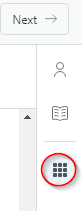
Git-Zen appears in the sidebar and asks you to start authorization.
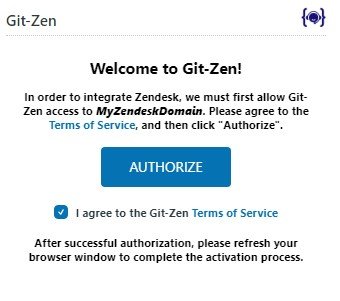
Authorize Zendesk
Section titled “Authorize Zendesk”- Click Authorize. A separate window opens and asks for access to your Zendesk account.
- Click Allow.
During this step, Git-Zen adds a ticket custom field named Git-Zen_data to your Zendesk account. Git-Zen stores the linked items for each ticket in it. Do not delete it.
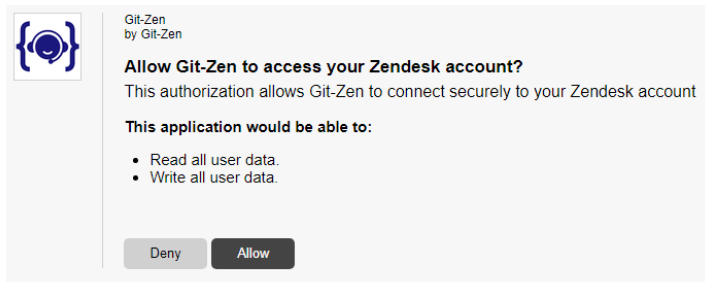
This uses a Zendesk OAuth token. You can revoke the token at any time on the Security tab of your Zendesk user account.
Next: connect your platform
Section titled “Next: connect your platform”After you click Allow, Git-Zen takes you to your platform’s authorization screen. Continue with the installation page for your platform: