
Plans, Trial and Billing
Git-Zen has a separate Zendesk Marketplace app for each version. The app you install sets your plan.
- Lite: The free version. It is available for GitHub, GitLab, and Azure DevOps only. See What Lite includes.
- Full: The paid version. It unlocks every feature. Pages in this documentation mark Full-only features with “Full version only”. Jira, Linear, and the other integrations are available in the Full version only.
- Enterprise: For larger teams, volume discounts, and self-hosted engineering tools, such as self-managed GitLab. Contact support to discuss it.
If you use Lite, you can try the Full version first. See Free trial.
If you have both the Full and the Lite app installed, Git-Zen uses the Full version.
What Lite includes
Section titled “What Lite includes”In Lite, Git-Zen links commits to tickets. When a commit message has a reference tag, the ticket shows the commit and its files. Git-Zen can also add a ticket comment for each commit.
Lite does not include:
- Creating, linking, or unlinking issues and work items from the sidebar
- Updates from issues and work items, such as comments and status changes
- Sending Zendesk comments to issues and work items
- Tag/label pairs, Zendesk tags, comment filters, and role permissions
- Most settings on the settings screen
Lite shows at most 5 items in each list on the ticket. You can activate webhooks for at most 10 repositories or projects.
Free trial
Section titled “Free trial”If you use Git-Zen Lite, you can try the Full version free for 14 days. The trial unlocks every Full-version feature. It does not need a credit card.
Start the trial
Section titled “Start the trial”A Zendesk administrator starts the trial in the Git-Zen sidebar:
- At the bottom of the sidebar, click Click here to try out the full version free for 14 days!
- Click Activate 14-day Trial.
You can use the trial once for each Zendesk account.
During the trial
Section titled “During the trial”Every Full version feature is on. Examples are creating and linking issues, comment sync in both directions, tag/label pairs, and role permissions. The sidebar shows how many days are left.
When the trial ends
Section titled “When the trial ends”The sidebar tells you that the trial has expired. Git-Zen goes back to Lite. You can then:
- Install the Full version from the Zendesk Marketplace and keep every feature.
- Continue with Lite for free, with fewer features.
- Uninstall Git-Zen from your Zendesk account.
Git-Zen does not delete your data when the trial ends. When you install the Full version, your links, mappings, and settings are still there. You do not need to authorize Zendesk or your platform again.
If 14 days is not enough, contact support and ask for an extension.
The price of the Full version depends on the number of active Zendesk agents on your account. For current prices, see the pricing on the Git-Zen website.
Billing
Section titled “Billing”Stripe processes Git-Zen payments. Git-Zen charges once a month. The Zendesk user who started the installation gets a receipt by email each month. Invoices and receipts show the name “Acenerate LLC”.
Yearly billing
Section titled “Yearly billing”To pay once a year instead of once a month, contact support. Support sets up the yearly invoice for you. A yearly invoice does not need a credit card. It includes online payment options.
Change billing information
Section titled “Change billing information”A Git-Zen administrator can open the billing portal from the sidebar:
-
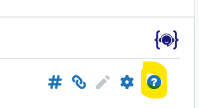
Click the Help button in the Git-Zen menu.
-
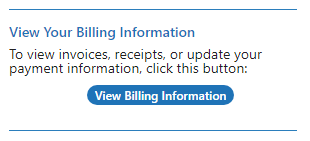
Scroll to View Your Billing Information.
-
Click View Billing Information.
A separate window opens. It shows past invoices and receipts, and lets you change your payment method.
This section does not appear during a free trial.
You can also sign in to the billing portal with the email address that receives your Git-Zen invoices:
https://billing.git-zen.com/p/login/
Change your plan
Section titled “Change your plan”To move from Lite to Full, install the Full app from the Zendesk Marketplace. To move from Full to Lite, install the Lite app and uninstall the Full app.
Git-Zen keeps your links and settings when you change plans. You do not need to authorize Zendesk or your platform again.
Cancel
Section titled “Cancel”To cancel, uninstall the Git-Zen app from Zendesk. Git-Zen stops working for your account. If you want to confirm that billing has stopped, contact support.
To use Git-Zen again, install it again from the Zendesk Marketplace.