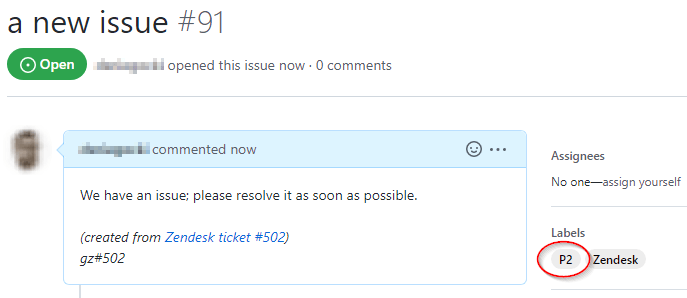
Defaults and Pickers for New Issues
Full version only.
These settings shape what your agents see when they create a new issue (a work item in Azure DevOps). You can set a custom body format, default labels or tags, and pickers that limit which labels or tags an agent can choose.
Custom issue body format
Section titled “Custom issue body format”By default, Git-Zen fills the description of a new issue with the latest ticket comment. If you turn on “Include Zendesk Ticket Header”, it adds a standard header at the top. This works well for most teams.
Use a custom body format when:
- Your engineering team has a standard bug report layout.
- You want specific ticket fields, such as “Customer Tier” or “Affected Version”, in the description.
A custom body format overrides the custom default description.
Build the body format
Section titled “Build the body format”- Click Settings on the Git-Zen menu bar.
- Find Custom Issue Body Format, under the options for new issues.
- Click Add Body Row.
- Choose the Row Type:
- Ticket Field: Choose a Zendesk Field. Optionally, enter a Label Prefix, such as
Priority:. Turn on Hide row when field is empty to leave out the whole row when the field has no value. - Free Text: Enter up to 500 characters of text, for example a heading such as
## Steps to reproduce.
- Ticket Field: Choose a Zendesk Field. Optionally, enter a Label Prefix, such as
- Click Save.
- Add more rows. Use the arrows to change their order. Click Save Changes.
Git-Zen joins the rows, one per line, when an agent opens the create form. The agent can edit the result before they click Add Issue.
The Zendesk Field list has the same fields as the placeholders, including your custom fields and organization fields.
Example
Section titled “Example”These rows:
| Row type | Content |
|---|---|
| Free Text | ## Summary |
| Ticket Field | Ticket Subject |
| Ticket Field | Requester Name, with the prefix Reported by: |
| Ticket Field | Customer Tier, with the prefix Tier: , hidden when empty |
| Free Text | ## Details |
| Ticket Field | Ticket Description |
give a description such as:
## SummaryLogin fails after password resetReported by: Ana LopezTier: Gold## DetailsAfter I reset my password, the login page...Interaction with the ticket header
Section titled “Interaction with the ticket header”The Include Zendesk Ticket Header option still works with a custom body format. If both are on, Git-Zen puts the header before the body. If your rows already contain the same ticket fields, leave the header off to avoid duplicates.
Go back to the default
Section titled “Go back to the default”Delete all body rows and save. Git-Zen then uses the latest ticket comment again, or your custom default description.
Default labels or tags
Section titled “Default labels or tags”You can set default labels (default tags in Azure DevOps) for new issues. This saves time when you want every issue marked as coming from Zendesk.
The defaults appear in two places:
- When you create a new issue.
- When you link an existing issue.
Set the defaults under Default Labels for Linked Issues in the Git-Zen settings.
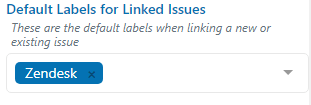
The labels fill in when you start to create a new GitHub issue:
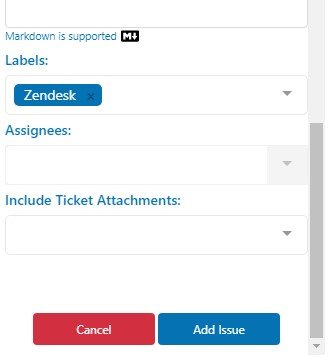
They also fill in when you link an existing GitHub issue:
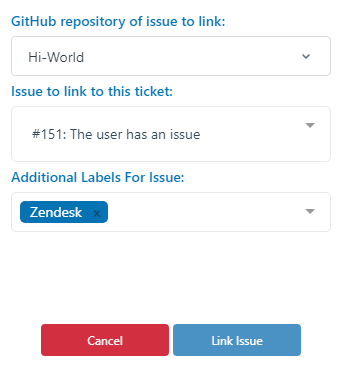
Set the defaults under Default Labels for Linked Issues in the Git-Zen settings. The labels fill in when you create a new GitLab issue and when you link an existing GitLab issue. The screens look like the GitHub ones.
Set the defaults under Default Tags for Linked Work Items in the Git-Zen settings.
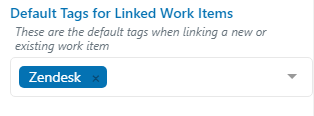
The tags fill in when you start to create a new work item:
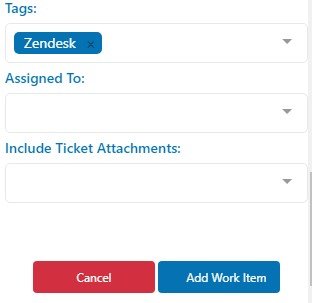
They also fill in when you link an existing work item:
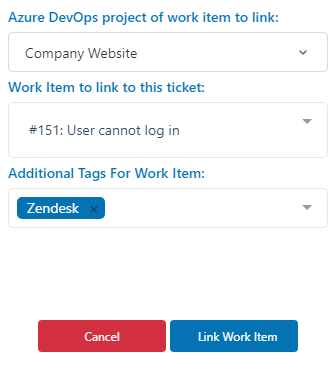
Set the defaults under Default Labels for Linked Issues in the Git-Zen settings. The labels fill in when you create a new Jira issue and when you link an existing Jira issue. On a new issue, Git-Zen applies only labels that already exist in Jira.
Set the defaults under Default Labels for Linked Issues in the Git-Zen settings. Enter one or more Linear label names, then click Save Changes.
The labels fill in when an agent creates an issue. They also fill in the Additional labels box when an agent links an existing issue. The agent can remove them. The labels must already exist in Linear.
To clear the defaults, remove the labels from the field and save. Existing issues do not change.
Add labels from ticket tags
Section titled “Add labels from ticket tags”Two more settings turn Zendesk ticket tags into labels or tags on the item:
- Default Tags to labels for Linked Issues: Enter a list of Zendesk tags. When an agent creates or links an item, Git-Zen adds each listed tag that the ticket has.
- Copy ticket tags by default: Adds all of the ticket’s tags to a new item.
Label pickers and tag pickers
Section titled “Label pickers and tag pickers”A picker is a drop-down list that guides agents to choose a label (a tag in Azure DevOps) for a new issue. You decide which labels the list contains.
You can use a picker even when the option to add labels or tags to a new issue is off. This lets you limit agents to labels that fit your workflow.
Define a picker
Section titled “Define a picker”- Open the main Git-Zen settings screen.
- Under the options for the fields that appear on a new issue, click Add Label Picker (Add Tag Picker in Azure DevOps).
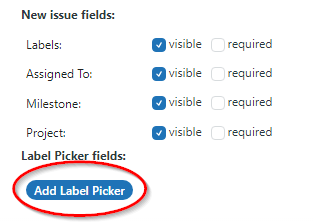
A window opens where you define the picker.
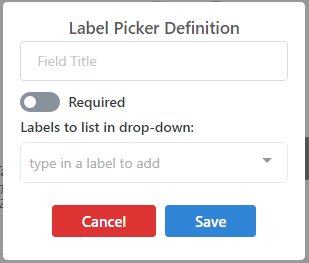
- Field Title: The title next to the drop-down on the new issue form. Choose a short title that describes the label to your agents.
- Required: Sets whether the agent must choose an option before they can create the issue.
- Labels (or tags) to list in drop-down: The available options. Git-Zen shows them in the order you enter them. You can type any label or tag. You are not limited to the ones that exist in your repositories. On Jira and Linear, a label that does not exist is left off the issue.
This example defines a “Priority” field:
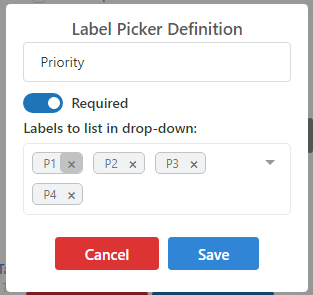
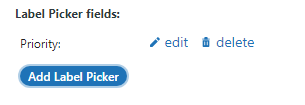
When you finish, the picker appears in the settings, where you can edit or delete it.
Use a picker
Section titled “Use a picker”The picker appears when an agent creates a new issue. If you marked it “required”, the agent must choose a value before they can add the issue.
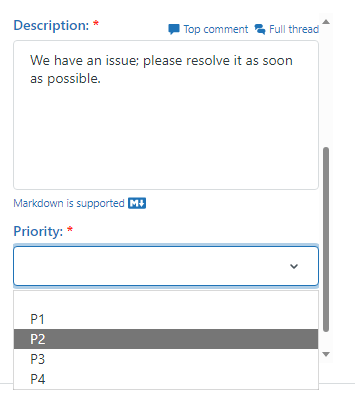
Git-Zen adds the chosen label or tag to the new issue.