
GitHub: Organization Authorization
You authorized Git-Zen, but you only see your personal repositories. Your organization’s repositories are missing. The cause is usually OAuth app access restrictions on the organization.
With these restrictions on, an organization owner must approve Git-Zen before it can see the organization’s repositories.
The process has three steps:
Request OAuth access
Section titled “Request OAuth access”The Git-Zen OAuth user does these steps.
-
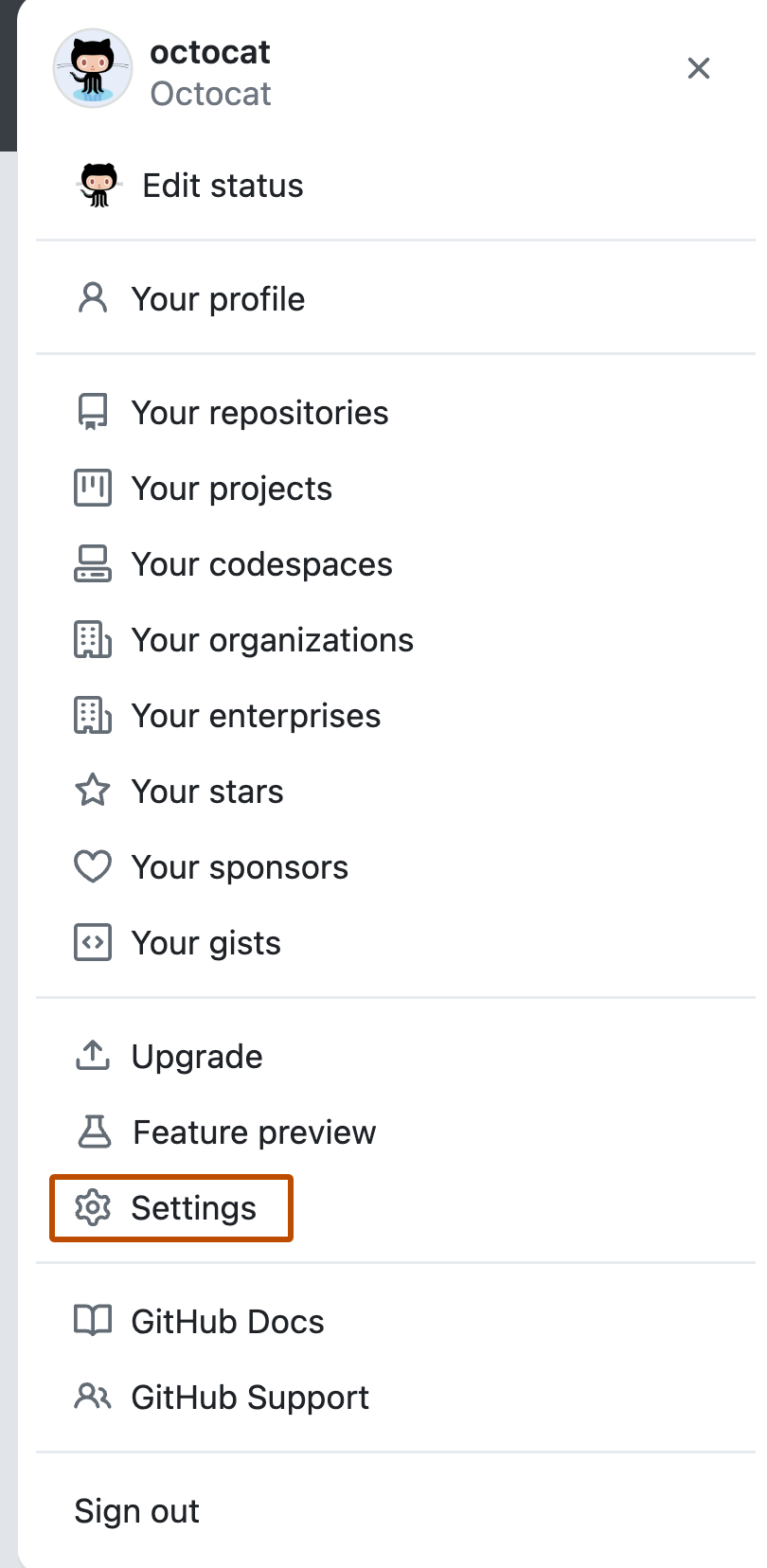
In the upper-right corner of any GitHub page, click your profile photo, then click Settings.
-
In the left sidebar, click Applications.
-
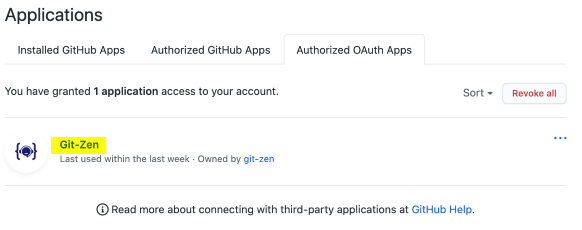
Click the Authorized OAuth Apps tab.

-
In the list of applications, click Git-Zen.
-
Next to the organization you want Git-Zen to access, click Request access.
-
Review the information, then click Request approval from owners.
Approve OAuth access
Section titled “Approve OAuth access”-
In the upper-right corner of GitHub, click your profile photo, then click Your organizations.
-
Next to your organization, click Settings.
-
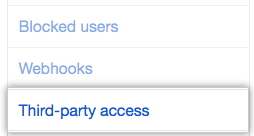
In the left sidebar, click Third-party access, then OAuth application policy.
-
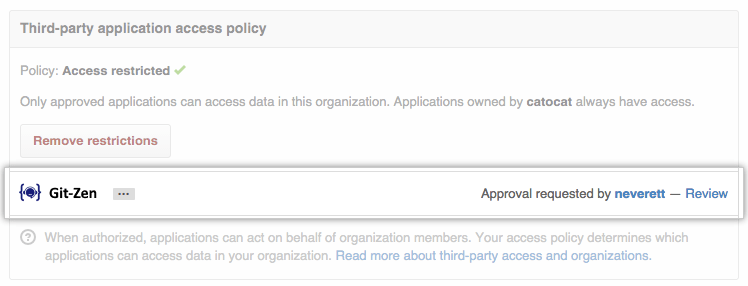
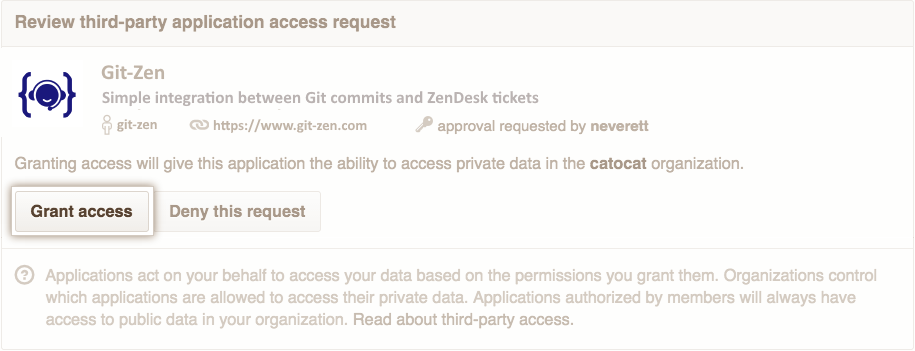
Next to the Git-Zen application, click Review.
-
Click Grant access.
Clear the Git-Zen repository cache
Section titled “Clear the Git-Zen repository cache”Git-Zen caches your repository list. After the owner grants access, click Clear Repository Cache on the Git-Zen Webhooks screen. See A new repository or project is missing.
Other options
Section titled “Other options”If your organization does not allow OAuth apps at all, use a personal access token. An organization can also require approval for fine-grained tokens.
More information
Section titled “More information”See the GitHub documentation: About OAuth app access restrictions.