
FAQ and Troubleshooting
Find your symptom in the “On this page” list and jump to it. Each entry gives the cause and the fix. If your problem is not here, contact support.
Setup and sign-in
Section titled “Setup and sign-in”Git-Zen lost access to Zendesk
Section titled “Git-Zen lost access to Zendesk”If the sidebar shows Git-Zen lost access to Zendesk, Git-Zen can no longer use its Zendesk token. Until you fix it, updates from your platform do not reach Zendesk.
A Zendesk administrator must reconnect it:
- Sign in to Zendesk as an administrator.
- Open a ticket and find the Git-Zen sidebar.
- Click Re-authorize the app in the banner.
Agents who are not administrators see a message that asks them to contact an administrator. This is on purpose. A non-administrator who re-authorizes stores a personal connection that tends to end quickly. The banner then comes back for everyone.
Authorization problems
Section titled “Authorization problems”When you create an item with an expired or revoked token, Git-Zen shows an error. The error tells you to re-authorize your token (Help → Re-Authorize Your Token) or to update your personal access token. Only a Zendesk administrator can re-authorize.
If the OAuth token fails, or your company does not allow OAuth, use a personal access token. Each Git-Zen app keeps its own token. On a mixed setup, save the correct token in each app.
“Bad credentials” or a 401 error means the saved credential is no longer valid. Common causes are a revoked token, an expired personal access token, or a user who left the organization. Re-authorize with GitHub, or paste a new token. See GitHub OAuth user.
Re-authorize with GitLab, or paste a new token. See GitLab OAuth user.
Re-authorize with Azure DevOps, or paste a new token. See Azure DevOps OAuth user.
Re-authorize with Jira. See Jira OAuth user.
Git-Zen renews the Linear token on its own. Re-authorize only if the token is revoked or the OAuth user leaves the workspace. See Linear OAuth user and Linear API errors.
If no teams appear after you authorize, the OAuth user may have no access to any team. Ask a Linear workspace Admin to re-authorize.
Can I use two Git-Zen apps on one Zendesk, for example GitHub and Azure DevOps?
Section titled “Can I use two Git-Zen apps on one Zendesk, for example GitHub and Azure DevOps?”Yes. The apps share one Git-Zen account for your Zendesk. Each app keeps its own repository list and its own personal access token. Saving settings in one app does not block saving in the other.
Older tag and label mappings that were never assigned to an app stay shared by all your apps. Open Tag/label pairs in each app and remove any mapping that does not belong there.
I authorize monday.com and get an error
Section titled “I authorize monday.com and get an error”Install the Git-Zen app in your monday.com account first. Then start authorization from Git-Zen. If you skip the install step, monday.com rejects the request.
Can I use Git-Zen with a privately hosted instance?
Section titled “Can I use Git-Zen with a privately hosted instance?”- GitLab self-managed: Yes, on the Enterprise plan. Connect with a personal access token, then enter your instance URL. See Self-hosted GitLab setup.
- GitHub Enterprise Server: No. Git-Zen works with GitHub.com only.
- Azure DevOps Server (on-premises): No.
Make sure your firewall allows the Git-Zen IP address, 52.202.91.72.
Linking and sync
Section titled “Linking and sync”A new link stays in the Linking state
Section titled “A new link stays in the Linking state”When you create or link an item, the sidebar shows it as Linking until your platform confirms it. If Zendesk rejects the update, the sidebar removes the row and shows a Ticket not updated message with Zendesk’s reason. If nothing confirms the link within 90 seconds, the row changes to Not confirmed. The link can also disappear when you refresh. Check these causes in order:
- Zendesk refuses the update. See Zendesk rejects updates to a solved ticket.
- The ticket is closed. Zendesk locks closed tickets. See Updates to closed tickets.
- The webhook is missing or off. Open the Webhooks screen. Confirm the repository, project, or team is active. See Webhooks.
- The reference tag is gone. Check that the item’s description still has the reference tag.
- A placeholder never got an event. Refresh the browser tab. The row disappears.
If you are still stuck, contact support with the ticket number.
Zendesk rejects updates to a solved ticket
Section titled “Zendesk rejects updates to a solved ticket”Your Zendesk may require some fields before a ticket can be solved. Examples are “required when solving” and “required on hold”. If such a field is empty on a solved ticket, Zendesk rejects every update with a 422 error. This includes every Git-Zen update: comments, the Git-Zen custom field, tags, links, and unlinks. Git-Zen cannot get around this.
Signs of this problem:
- A new link on a solved ticket does not stay. The sidebar shows Ticket not updated with Zendesk’s reason, or Not confirmed after 90 seconds.
- An unlink fails. The sidebar shows the reason and puts the list back as it was.
- Comments from your platform do not appear on a solved ticket, but they appear on open tickets.
To fix it:
- Fill in the required field on the ticket.
- Or change the field in Zendesk so it is not required for updates made by an API.
- Link, unlink, or sync again.
New events then update the ticket. Git-Zen does not replay events that Zendesk rejected. The sidebar does not always show this error, so check the required fields first when a link seems stuck.
The same thing happens when Git-Zen solves a ticket for you and a field that is required to solve is empty.
I changed priority or status in Zendesk, but the issue did not change
Section titled “I changed priority or status in Zendesk, but the issue did not change”Git-Zen sends Zendesk field changes through a Zendesk trigger named Git-Zen - Change: your subdomain. See The Git-Zen trigger.
- Confirm the field has a mapping with the direction To platform →.
- Open the Zendesk Admin Center and find the trigger. Confirm it is active and nobody has edited it.
- If the trigger does not exist, turn on a Send comments to linked issues option in the Git-Zen settings once, then save. Git-Zen creates the trigger only then.
- A change to ticket tags alone does not fire the trigger. The tags sync with the next comment or field change.
- Jira does not support tag/label pairs. On Linear, only the direction to Linear works.
- If changes still do not sync, contact support. We can repair the trigger for you.
A new repository or project is missing
Section titled “A new repository or project is missing”Git-Zen caches repository data on the server. This speeds up Git-Zen and cuts the number of requests it makes to your platform. The cache can be several minutes old, so a new repository, project, team, or work item may not appear at once.
-
Use the refresh button on the list.
-
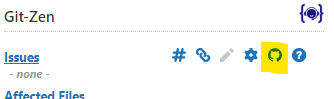
For a new repository or project, also clear the cache. On the main Git-Zen screen, click the Webhooks menu button.
-
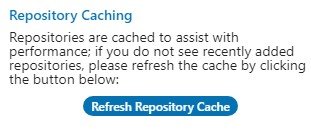
Find the Repository Caching section.
-
Click Clear Repository Cache.
Git-Zen then shows a fresh list.
A repository must be active on the Webhooks screen before it appears when you create or link issues.
A repository must be active on the Webhooks screen before it appears when you create or link issues.
The work item picker lists your most recently changed work items. Your work item type and status settings also limit the list. If an older item is not in the list, link it with a reference tag in the work item description. A project must be active on the Webhooks screen before it appears.
A project must be active on the Webhooks screen before it appears. The link list shows up to 100 of the newest issues that are not in the Done category. To link an older issue, add a reference tag to its description in Jira.
A team must be active on the Webhooks screen before it appears. If a team is unchecked or missing from the create form, check the teams you need and click Save Changes. Do not save with every team cleared. That deletes the workspace webhook. See What are webhooks?.
If a workflow state is missing from the Status list, make sure it exists in Team settings → Workflow in Linear. Then wait a few minutes and refresh the Zendesk tab.
Can I link several issues to one ticket?
Section titled “Can I link several issues to one ticket?”Yes. You can link several issues to one ticket. You can also link several tickets to one issue. On Linear, link the issue from the sidebar of each ticket, or add a reference tag for each ticket to the issue description.
How do I link an issue that I created on my platform?
Section titled “How do I link an issue that I created on my platform?”Add a reference tag to the issue description. On Linear, the tag is gz# and the ticket number, for example gz#12345. A tag in a comment does not link the issue.
Does Git-Zen sync GitHub pull requests or GitLab merge requests?
Section titled “Does Git-Zen sync GitHub pull requests or GitLab merge requests?”No. Pull request and merge request activity does not reach Zendesk. To link code, put a reference tag in a commit message. See Linking commits.
On Linear, why can I not set a field the way I expect?
Section titled “On Linear, why can I not set a field the way I expect?”- Assignee: Linear allows one assignee per issue.
- State: The sidebar sets the state only when you create an issue. Change the state of a linked issue in Linear.
- Estimate: Git-Zen shows 1, 2, 3, 5, 8, 13, and 21 for every team. If your team uses another scale, choose None and set the estimate in Linear.
- Labels: Git-Zen does not create Linear labels. It applies only labels that already exist in the team or the workspace.
- Several teams: To create issues in more than one team from one ticket, open the create form again and choose a different team.
Can I run reports on my linked tickets?
Section titled “Can I run reports on my linked tickets?”Yes. Git-Zen can add your own tags to Zendesk tickets when they are linked and when they are closed. You can then build reports that show which tickets were escalated and whether they were resolved. See Zendesk tags.
Comments
Section titled “Comments”Comments from my platform stopped arriving in Zendesk
Section titled “Comments from my platform stopped arriving in Zendesk”Check these items in order:
- The comment switches. On GitHub, GitLab, and Azure DevOps, open Settings and check that Upon issue comment is on. On Jira and Linear, these switches have no effect. Git-Zen copies every comment. See Ticket comments.
- Comment filters. Open Settings and find Comment sync filters. If you set an include pattern, Git-Zen sends only comments that match it. Clear both patterns to test. See Comment filters.
gz#skip. A comment that containsgz#skipis never sent.- The ticket. Zendesk does not accept comments on closed tickets. See Updates to closed tickets. A solved ticket with an empty required field also rejects them. See Zendesk rejects updates to a solved ticket.
- The webhook. Confirm the repository, project, or team is active on the Webhooks screen.
Also check that the issue description has the reference tag for the ticket, and that the issue is in a public team.
Why do I see duplicate comments?
Section titled “Why do I see duplicate comments?”You probably have more than one Git-Zen trigger or webhook in your Zendesk account. Each one sends the same comment to your platform. To fix this:
- A Zendesk administrator opens Admin Center → Objects and rules → Triggers, and then Apps and integrations → Webhooks.
- Find the Git-Zen entries. The current ones are:
- The trigger Git-Zen - Change: your subdomain
- The webhook Git-Zen Webhook: your subdomain, which points to
https://api.git-zen.com/externalfunctions/GitZenRepoAddIssueCommentData
- Deactivate other Git-Zen triggers and webhooks, for example ones named Git-Zen Issue Comment from older versions.
- After you confirm that the problem is gone, delete the deactivated entries.
If you are not sure which entries to keep, contact support.
On Linear, another integration may also post the same comments. Turn one of them off, or add gz#skip to comments that Git-Zen should not copy.
Images I add in a later comment do not show in GitLab
Section titled “Images I add in a later comment do not show in GitLab”Git-Zen re-hosts images from Zendesk comments before it sends them to GitLab. This applies to comments sent to an issue that is already linked. If you still see broken images on comments from before July 2026, add the image to the issue again.
Comments from my developers show as the Git-Zen user in Zendesk
Section titled “Comments from my developers show as the Git-Zen user in Zendesk”Git-Zen matches the developer’s email address to a Zendesk user. If the developer keeps the email private, add a pseudo-email address to the Zendesk user, for example username@git-zen.internal. Git-Zen still matches older username@git-zen.test addresses. See Pseudo-email addresses.
Git-Zen matches the developer’s email address to a Zendesk user. If the developer keeps the email private, add a pseudo-email address to the Zendesk user, for example username@git-zen.internal. See Pseudo-email addresses.
Git-Zen matches the developer’s email address to a Zendesk user. See Ticket comments.
Git-Zen does not match users. Every comment shows as the Zendesk user who authorized Git-Zen.
Git-Zen does not match users. Every comment shows as the Zendesk user who authorized Git-Zen.
Can my Zendesk agents’ comments and actions appear as themselves on my platform?
Section titled “Can my Zendesk agents’ comments and actions appear as themselves on my platform?”Not at this time. Git-Zen performs all actions with one defined user account. Platforms do not let an integration impersonate a user to create an issue or comment. Each action must be authenticated.
Also, in most Git-Zen accounts the Zendesk agents are not the same people as the developers. Most agents have no matching account on the platform. Each agent would need separate credentials in Git-Zen. A large set of cross-mapped credentials would be hard to manage and give a poor experience.
We may add a solution later and we continue to look at options.
Many customers solve this with a dedicated user for Git-Zen on their platform, named “Git-Zen” or “Zendesk Integration”. The name makes it clear that a person did not perform the action.
Webhooks
Section titled “Webhooks”Do I have to add a webhook for every repository?
Section titled “Do I have to add a webhook for every repository?”Git-Zen adds webhooks for you when you activate a repository or project on the Webhooks screen. You need enough access on your platform: admin access on GitHub, the Maintainer role on GitLab, or a project administrator on Azure DevOps. If you do not have it, a user who does must add the webhook by hand. Git-Zen always registers Jira and Linear webhooks for you. Do not add a Jira webhook by hand. See Webhooks.
Why are my Jira updates not reaching Zendesk?
Section titled “Why are my Jira updates not reaching Zendesk?”Jira webhooks expire after 30 days if nobody renews them. Git-Zen renews them for you. If updates stop, confirm the project is active on the Webhooks screen. Then contact support.
I turned off a Linear team, but Linear still sends events
Section titled “I turned off a Linear team, but Linear still sends events”Linear uses one webhook for the whole workspace. The team check boxes only choose which teams appear when agents create or link issues. They do not filter events. Git-Zen updates a ticket from any public team when the issue has a reference tag for that ticket. See Webhooks.
The Asana webhook screen lists workspaces, not projects
Section titled “The Asana webhook screen lists workspaces, not projects”Asana webhooks are set up per workspace. Select the workspace that holds your projects. See Other integrations.
I cannot find a “Subitems of …” board on the monday.com webhook screen
Section titled “I cannot find a “Subitems of …” board on the monday.com webhook screen”monday.com does not allow webhooks on subitem boards, so Git-Zen does not list them. Subitem events arrive through the parent board. Check the parent board instead. See Other integrations.
Billing and account
Section titled “Billing and account”How is my bill calculated?
Section titled “How is my bill calculated?”The price of the Full version depends on the number of active Zendesk agents on your account. Git-Zen charges once a month. For current prices, see the pricing on the Git-Zen website. To see past invoices, open the billing portal from the Help menu. See Plans and billing.
How do I update the credit card or billing email address?
Section titled “How do I update the credit card or billing email address?”See Change billing information.
What happens to my links if I move to Lite?
Section titled “What happens to my links if I move to Lite?”You keep all links and settings. You lose the Full-only features until you upgrade. Jira, Linear, and the other integrations have no Lite version. See Plans and billing.
Is my data stored securely?
Section titled “Is my data stored securely?”Git-Zen keeps your Git-Zen settings and your OAuth tokens, which it stores encrypted. It also keeps service logs to troubleshoot problems. These logs can include parts of the events that your platform sends. Your tickets and issues stay in your Zendesk instance and on your platform. Git-Zen does not keep its own copy of them.
Browser and cookies
Section titled “Browser and cookies”The sidebar is blank, or authorization does nothing
Section titled “The sidebar is blank, or authorization does nothing”Git-Zen runs in a frame inside Zendesk. Your browser must allow third-party cookies for Git-Zen. If it blocks them, you may see:
- A blank Git-Zen sidebar.
- An Authorize button that does nothing, or a window that opens and closes at once.
- An “Authorization error” that stays after you re-authorize.
- Webhook settings that never finish loading.
Git-Zen runs at api.git-zen.com and loads inside Zendesk (yoursubdomain.zendesk.com). The browser treats its session cookie as a third-party cookie. Without it, Git-Zen cannot keep your authorization between page loads. Git-Zen does not use the cookie for tracking or analytics. It only identifies which Zendesk account makes the request.
- Open Settings → Privacy and security → Third-party cookies.
- Choose Allow third-party cookies. Or keep Block third-party cookies and add an exception for
[*.]git-zen.com. - Refresh the Zendesk tab.
- Open Safari → Settings → Privacy.
- Clear Prevent cross-site tracking.
- Refresh the Zendesk tab.
Safari’s Intelligent Tracking Prevention may block the cookie again after a few days. If Git-Zen works on day one and breaks a week later, this is the likely cause. Re-authorize Git-Zen from the Help menu.
- Open Settings → Privacy & Security.
- Under Enhanced Tracking Protection, choose Standard (not Strict). Or choose Custom and add
git-zen.comto the exceptions. - Refresh the Zendesk tab.
- Open Settings → Cookies and site permissions → Cookies and site data.
- Under Allow, add
[*.]git-zen.com. - Refresh the Zendesk tab.
If your organization manages browser settings centrally, for example with Chrome Enterprise or Microsoft Intune, ask your IT team to allow third-party cookies for api.git-zen.com.
If the sidebar still does not load:
- Try a private or incognito window. This rules out browser extensions.
- Try a different browser.
- Open the browser developer console (
F12) and look for blocked cookie warnings.
Errors and messages
Section titled “Errors and messages”I see “There was an issue with your request” when I save settings
Section titled “I see “There was an issue with your request” when I save settings”This happened for customers who run more than one Git-Zen app on one Zendesk. It is fixed. Refresh the browser tab and save again. If it still fails, contact support.
“Create Issue” does nothing when I click it
Section titled ““Create Issue” does nothing when I click it”Refresh the Zendesk tab and try again. If it still does nothing, open the browser console (F12) and send the error to support. A 2026 fix covered one known cause: required ticket fields with ? or * in the field name.
The Azure DevOps update fails because of a tag
Section titled “The Azure DevOps update fails because of a tag”Azure DevOps rejects tags that contain line breaks. Git-Zen removes line breaks from Zendesk tags before it sends them. If you still see tag errors, check for other special characters in your tags.
Zendesk returns error 422
Section titled “Zendesk returns error 422”See Zendesk rejects updates to a solved ticket.
Getting help
Section titled “Getting help”Contact support if these steps do not fix your problem. Include the ticket number, what you expected, what happened, and any browser console errors.