
Tag/Label Pairs
Full version only.
Tag/Label Sync (also called field sync or tag/label pairs) copies specific fields between a Zendesk ticket and a linked issue or work item. For example, you can map Zendesk ticket tags to labels on your issues.
Get started
Section titled “Get started”- Open Git-Zen in your Zendesk sidebar.
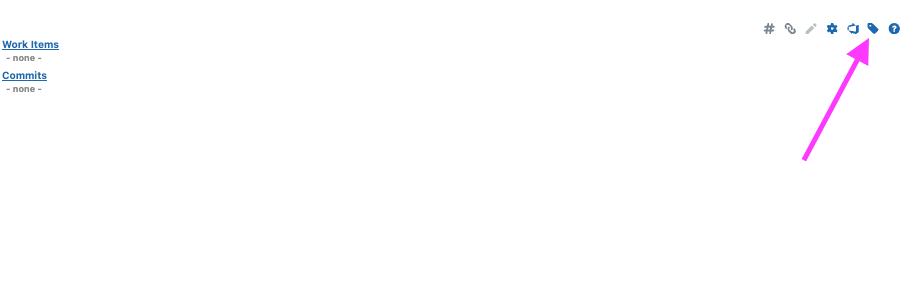
- Click the Tag/Label Sync button on the menu bar. Only users with the Git-Zen Administrator level see this button.
- Click Add Mapping and fill in the row.
- Click Save Changes.
What are mappings?
Section titled “What are mappings?”A mapping is a rule that tells Git-Zen how to sync one field. Each mapping has three parts:
- The Zendesk field. For example
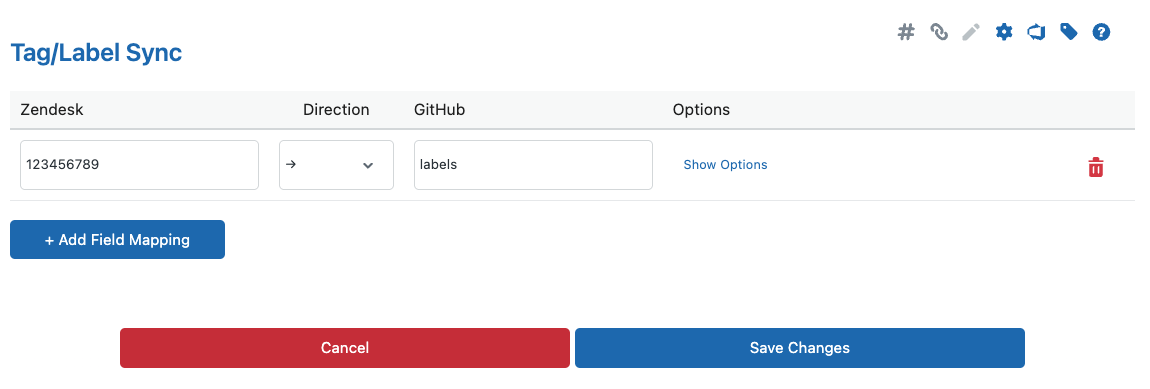
ticket.tags,ticket.status,ticket.priority, or a custom field ID. - The direction. Move the slider to To platform →, None, or ← From platform. None turns the mapping off without deleting it.
- The platform field. For example labels or state.
This example syncs the Zendesk custom field 123456789 to the platform field “labels”:
If you use Git-Zen with more than one platform, each mapping applies to the platform whose app you saved it from.
When Git-Zen syncs
Section titled “When Git-Zen syncs”Zendesk to platform. Git-Zen syncs when the mapped Zendesk field changes. The Git-Zen trigger in Zendesk sends the change. The trigger fires when the ticket gets a comment, or when its priority, status, type, assignee, group, or a mapped custom field changes.
Platform to Zendesk. Git-Zen syncs when an issue or work item event arrives from your platform, for example when a label is added or the state changes.
Advanced options
Section titled “Advanced options”Click the gear icon on a mapping to open Mapping Details:
- Add to START and Add to END: Add text before or after the synced value. For example, add
gh_to mark synced tags. - Force Case: Leave Original, Change to Lowercase, or Change to Uppercase.
- Append with: Add the value to the existing values instead of replacing them, and choose the separator. This works on Zendesk custom fields as well as on tags (GitHub, GitLab, and Azure DevOps). Git-Zen keeps the existing order and leaves out duplicate values.
- Ignore if Prev Value: Skip the sync if the field had a certain value before. Start the value with
!to skip unless the field had that value. - Value Replacements: Replace one value with another. You can make the match case-sensitive, match only full values, and sync only values that were replaced (Map only when xformd).
To download your mappings as JSON, click Export Mappings. Git-Zen cannot import them.
Find custom field IDs in Zendesk
Section titled “Find custom field IDs in Zendesk”- Go to the Zendesk Admin Center.
- Click Objects and rules, then Tickets, then Fields.
- Click the custom field.
- Look at the URL:
https://yourcompany.zendesk.com/admin/objects-rules/tickets/ticket-fields/360026792497 - The number at the end of the URL (here
360026792497) is the ID of the field.
Zendesk fields
Section titled “Zendesk fields”ticket.tags(ortags)ticket.status(orstatus). From your platform, Git-Zen accepts onlynew,open,pending,hold,solved, andclosed.ticket.priority(orpriority)- Any numeric custom field ID
Platform fields and direction
Section titled “Platform fields and direction”Mappings work in both directions.
Examples
- Make every GitHub label a Zendesk tag. Zendesk field:
tags. Direction: ← (GitHub to Zendesk). GitHub field:labels. Result: the GitHub labelbugbecomes the Zendesk tagbug. - Sync the issue number to a custom field. Zendesk field:
360026792497(your field ID). Direction: ← (GitHub to Zendesk). GitHub field:number. Result: issue #1234 shows in your custom field.
GitHub field names: state, status, id, number, label, labels, url, title, updated, assignees.
Mappings work in both directions.
Examples
- Sync Zendesk ticket tags to GitLab labels. Zendesk field:
ticket.tags. Direction: To GitLab →. GitLab field:labels. - Make every GitLab label a Zendesk tag. Zendesk field:
ticket.tags. Direction: ← From GitLab. GitLab field:labels.
GitLab fields, from Zendesk to GitLab:
labelsstate(acceptsopenorclosed; Git-Zen translates it to GitLab’sstate_event)assignee_ids(numeric GitLab user IDs)milestone_id(numeric;0removes the milestone)due_date(YYYY-MM-DD)weight(GitLab Premium)titledescription- Any other field the GitLab Edit Issue API accepts
GitLab fields, from GitLab to Zendesk: state, status, id, number, label, labels, url, title, updated, assignees.
Mappings work in both directions.
Examples
- Make every Azure DevOps tag a Zendesk tag. Zendesk field:
tags. Direction: ← (Azure DevOps to Zendesk). Azure DevOps field:System.Tags. Result: the Azure DevOps tagbugbecomes the Zendesk tagbug. - Sync the work item ID to a custom field. Zendesk field:
360026792497(your field ID). Direction: ← (Azure DevOps to Zendesk). Azure DevOps field:System.Id. Result: the work item ID shows in your custom field.
Azure DevOps field names: System.State, System.Id, System.Tags, System.Url. You can use any other work item field reference name, for example Microsoft.VSTS.Scheduling.DueDate or Custom.*. See the Work Item Fields list.
Tag/label pairs do not currently sync for Jira, in either direction.
Git-Zen sends the value to Linear’s issueUpdate API as it is. The Linear field name must be a Linear API input field, and the value must have the type that Linear expects.
Linear fields that work
| Linear field | Value |
|---|---|
title |
Text. Replaces the title. |
description |
Markdown text. Replaces the description, including the gz# reference tag. |
priority |
A number: 0 (no priority), 1 (urgent), 2 (high), 3 (medium), 4 (low) |
estimate |
A number that fits the team’s estimation scale |
stateId |
The UUID of a workflow state |
assigneeId |
The UUID of a Linear user |
projectId |
The UUID of a project |
cycleId |
The UUID of a cycle |
Example
- A Zendesk priority custom field to Linear priority. Zendesk field: your field ID. Direction: To Linear →. Linear field:
priority. The field values must be0to4. Create a Zendesk drop-down field whose tag values are0to4, and map that field.
Troubleshooting
- My mapping saves but nothing syncs. Check the direction. It must be To Linear →. Then check that the Git-Zen trigger exists in Zendesk.
- Priority is ignored. The value must be a number from 0 to 4. Text such as
highdoes not work.