
Installation
Git-Zen installation is quick. The app steps you through the process.
First, install Git-Zen from the Zendesk Marketplace and authorize Zendesk. Then continue here to connect GitHub.
Git-Zen works with repositories on github.com. This includes GitHub Free, Team, and Enterprise Cloud organizations.
GitHub authorization
Section titled “GitHub authorization”After you click Allow on the Zendesk authorization screen, Git-Zen opens the GitHub authorization screen. If you are not signed in to GitHub, GitHub asks you to sign in.
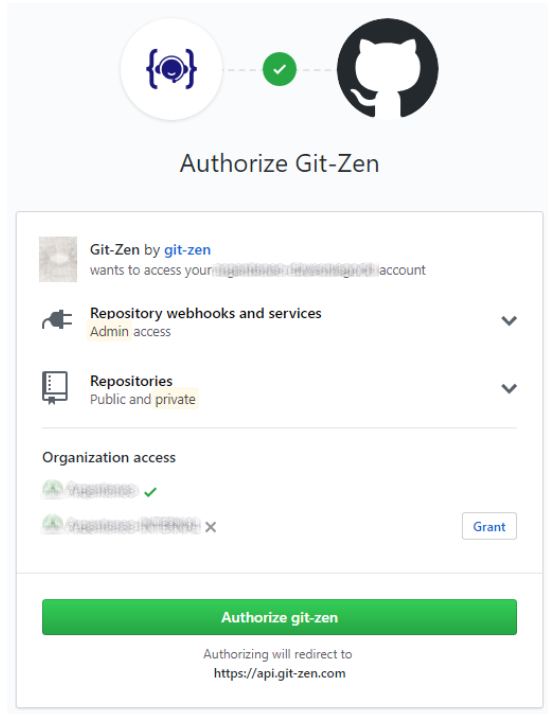
Git-Zen asks GitHub for two OAuth scopes:
repo: read and write issues, comments, labels, and webhooks in your repositories.project: read and add issues to GitHub Projects. See Projects.
Git-Zen acts in GitHub as the user who authorizes it. Consider a dedicated service account. See GitHub OAuth user.
When you authorize Git-Zen, the authorization window closes. Return to your Zendesk window and refresh it.
If your company does not allow OAuth apps, use a personal access token instead.
Link GitHub repositories with webhooks
Section titled “Link GitHub repositories with webhooks”You now see the full Git-Zen app in the sidebar. A Webhooks icon appears on the Git-Zen menu bar.
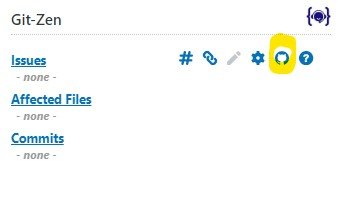
Click this icon to see your GitHub repositories. Select the repositories you want to use with Git-Zen, then click Save Changes.
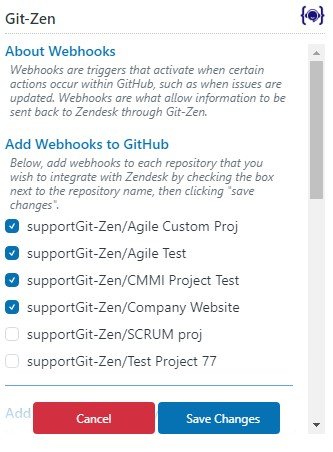
The list shows the repositories that the OAuth user owns, collaborates on, or can reach as an organization member. Git-Zen lists up to 1,000 repositories. Disabled repositories cannot get a webhook.
Git-Zen creates one webhook in each selected repository. The webhook sends these GitHub events: push, issues, issue_comment, commit_comment, pull_request, and release. See What syncs from GitHub and Release notifications.
You’re all set
Section titled “You’re all set”You are ready to begin using Git-Zen.