
GitLab OAuth User
Git-Zen uses the GitLab OAuth user token to do all of its work in GitLab on your behalf.
About GitLab OAuth
Section titled “About GitLab OAuth”The OAuth user is the GitLab.com account that authorized Git-Zen during installation. Git-Zen stores the token securely. It uses the token only for your Git-Zen account. You can revoke it at any time in GitLab under Edit profile → Applications.
Git-Zen uses the token to:
- Create issues
- List existing issues
- Add comments to issues
- List available projects
- Read project information, such as labels, milestones, assignees, and issue templates
- Add and remove project webhooks
Git-Zen asks for the api scope. GitLab OAuth tokens expire. Git-Zen refreshes the token for you about every 45 minutes.
Every comment and issue that Git-Zen creates in GitLab shows the OAuth user as its author. GitLab does not let an integration act as another user. Many teams create a service account, such as “Zendesk Integration”, for this reason.
OAuth works with GitLab.com only. For a self-managed GitLab instance, use a personal access token. See Self-hosted GitLab setup.
Reassign or recreate the OAuth token
Section titled “Reassign or recreate the OAuth token”To check or change the GitLab user behind the token:
-
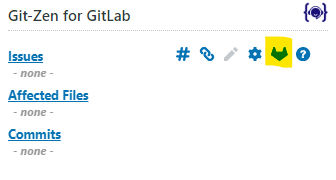
On the main Git-Zen screen, click the Webhooks menu button.
-
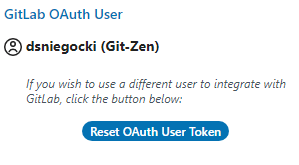
Scroll to the GitLab OAuth User section. It shows the current user name.
-
To use a different user, first sign out of GitLab as the old user. Otherwise GitLab can reissue the token to the old account.
-
Click Reset OAuth User Token and follow the prompts.
The same section has a Switch to Personal Access Token button.
Re-authorize the OAuth token
Section titled “Re-authorize the OAuth token”If the token was revoked in GitLab, create it again from the Help section:
-
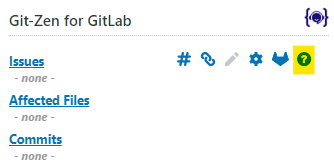
On the main Git-Zen screen, click the Help menu button.
-
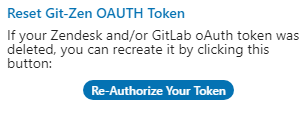
Scroll to Reset Git-Zen OAUTH Token.
-
Click Re-Authorize Your Token and follow the prompts.
Only a Zendesk administrator can authorize Git-Zen.