
Reference Tags and Commits
What is a Git-Zen reference tag?
Section titled “What is a Git-Zen reference tag?”A Git-Zen reference tag marks something in your platform so Git-Zen can link it back to a Zendesk ticket. Type gz#, then the number of the Zendesk ticket, with no space. Upper case (GZ#) also works. A reference tag looks like this:
gz#5150
In this example, 5150 is the Zendesk ticket number.
You can type a reference tag into an issue or work item description. On GitHub, GitLab, and Azure DevOps you can also type it into a commit message. The webhook captures the change and sends it to Git-Zen. Git-Zen finds the Zendesk ticket in the tag and takes the appropriate action.
Link a commit
Section titled “Link a commit”Linking a commit to a Zendesk ticket shows which changes in your code addressed the ticket. Git-Zen lists the commit in the app next to the ticket. On GitHub and GitLab, it also lists the affected files.
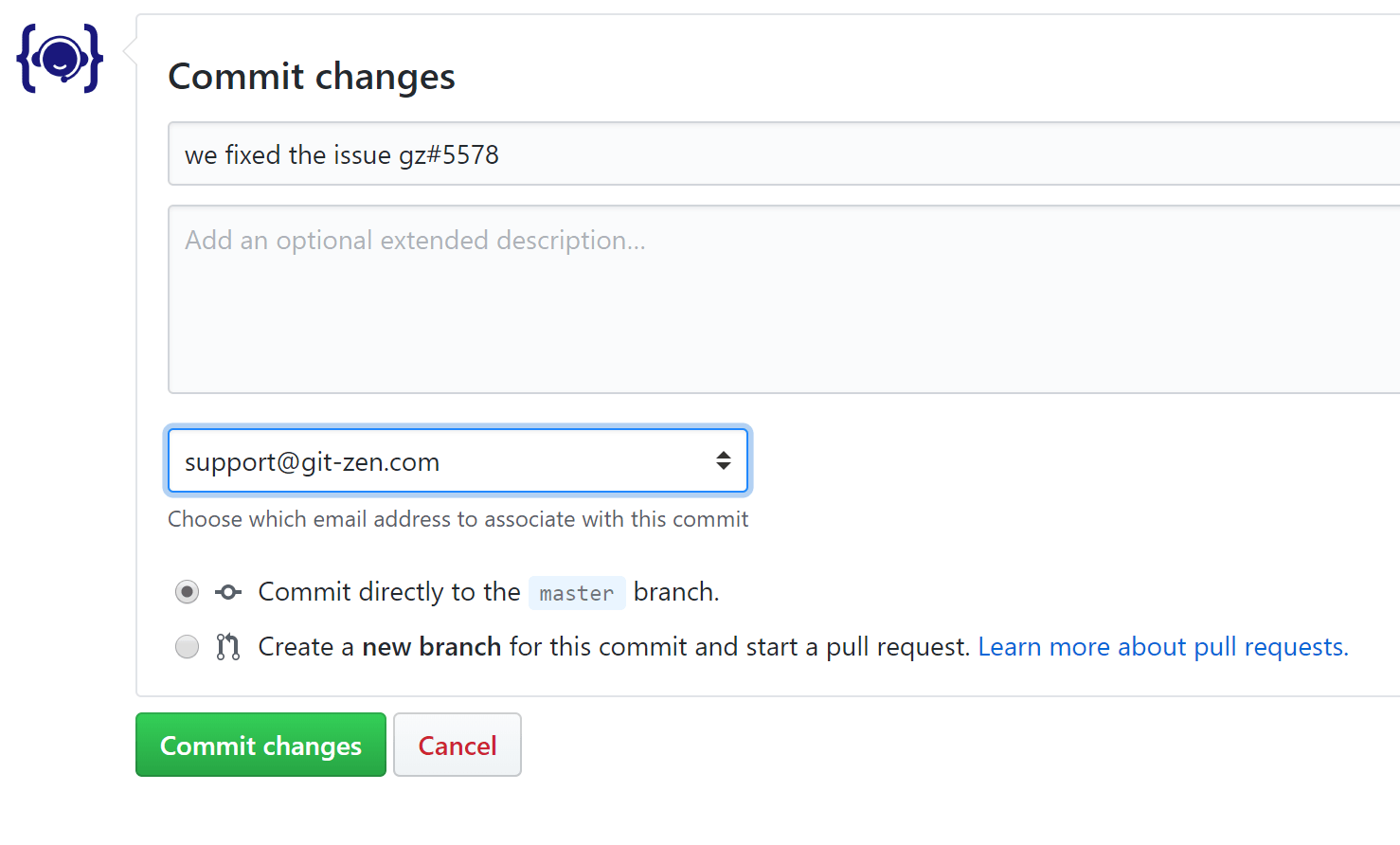
You do not link a commit from the Git-Zen app. Instead, include a reference tag in the commit message. For example, you commit files that changed to address Zendesk ticket 5450. Your commit message can look like this:
We fixed this issue by altering the login process gz#5450
The reference tag can be anywhere in the message:
The issue gz#5450 was solved
You can link one commit to more than one Zendesk ticket. Include more than one reference tag:
The login issues changes were completed gz#5450 gz#5452
You can also use the same reference tag in more than one commit message, even from different repositories. Git-Zen lists each commit in the app.
It does not matter where you write the commit message. You can write it in the web interface of your platform, or on the command line on your local machine. When you push the commit to the remote repository, Git-Zen detects the reference tag and sends the information to the Zendesk ticket.
Link an issue or work item
Section titled “Link an issue or work item”To link an issue or work item to a Zendesk ticket, add a reference tag to its description:
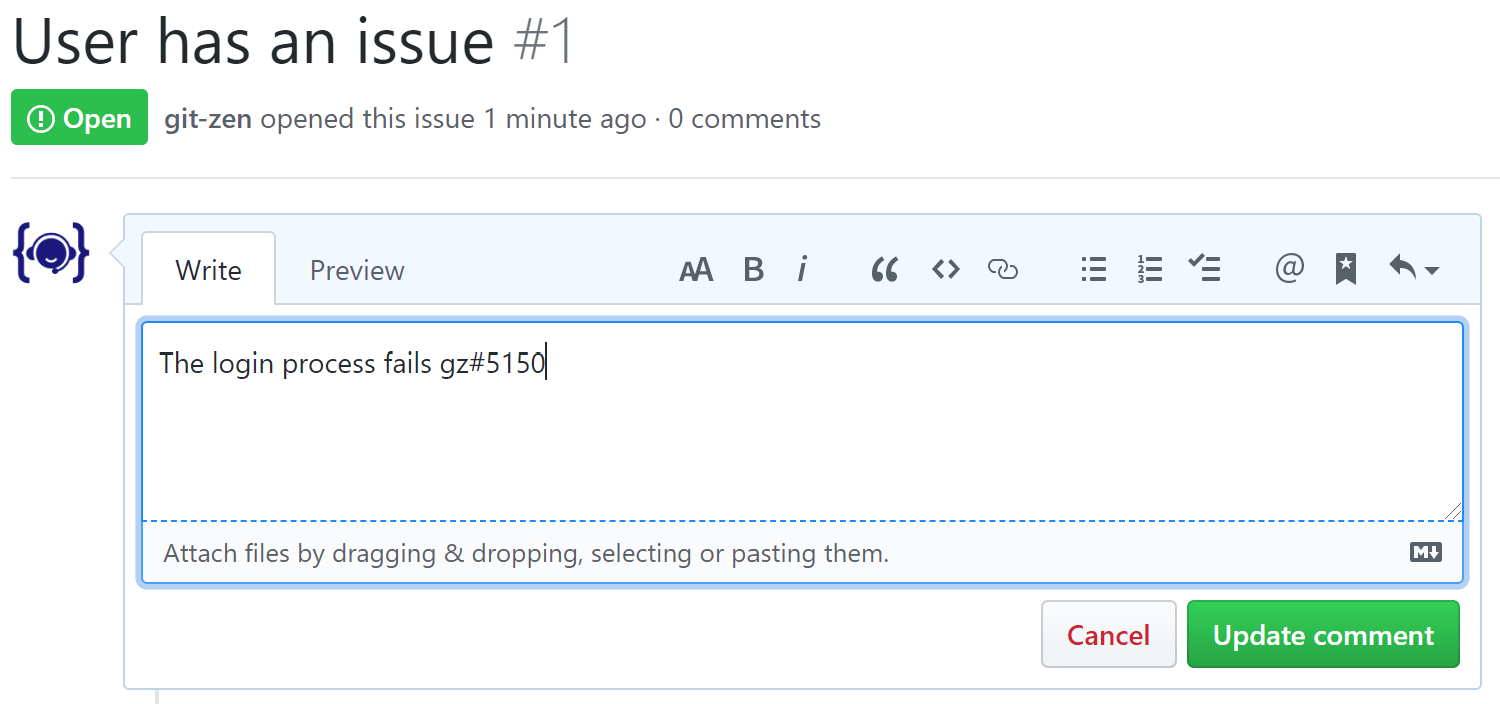
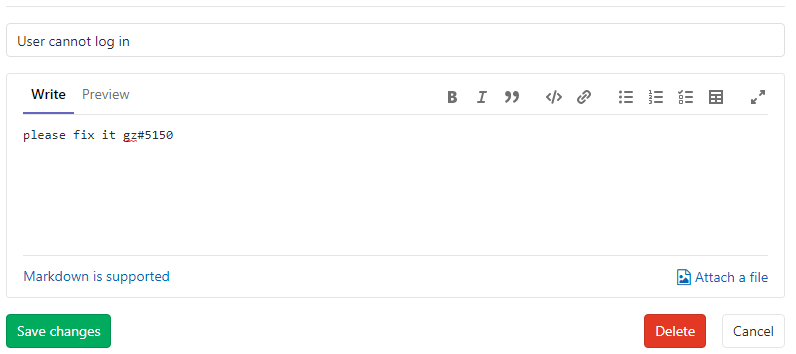
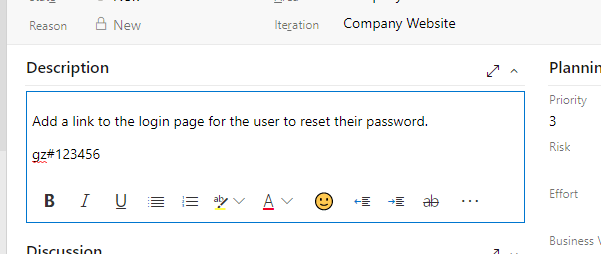
Add the reference tag anywhere in the Jira work item description.
Add the reference tag anywhere in the Linear issue description, and save. A tag in a comment does not link the issue. Git-Zen ignores it.
When you create a new issue or work item or link an existing one from Git-Zen, Git-Zen adds the reference tag to the description for you. On Linear, it adds the tag, such as gz#12345, to the end of the issue description.
What else to know
Section titled “What else to know”- The reference tag can be anywhere in the description or commit message.
- You can include more than one reference tag in the same description or commit message.
- A Zendesk ticket can have reference tags in more than one issue, work item, or commit.
- If you remove the reference tag from a description, Git-Zen stops updating the ticket from that item. The item stays in the ticket’s list in Git-Zen. To remove it from the list, edit the list.
Hide the tag
Section titled “Hide the tag”A tag inside an HTML comment, such as <!-- gz#5150 -->, still links the ticket. The tag is hidden when the description is rendered, and Git-Zen still finds it.
A tag inside an HTML comment, such as <!-- gz#5150 -->, still links the ticket. The tag is hidden when the description is rendered, and Git-Zen still finds it.
A tag inside an HTML comment, such as <!-- gz#5150 -->, still links the ticket. The tag is hidden when the description is rendered, and Git-Zen still finds it.
A tag inside an HTML comment, such as <!-- gz#5150 -->, still links the ticket. The tag is hidden when the description is rendered, and Git-Zen still finds it.
Platform notes
Section titled “Platform notes”Linear
Section titled “Linear”- Git-Zen reads reference tags in the issue description only.
- Git-Zen can also store links in its own database instead of in the issue description. There is no sidebar setting for this. Contact support if you need it.