
Ticket Comments
Git-Zen syncs comments in both directions.
- Incoming comments flow from your platform (GitHub, GitLab, Azure DevOps, Jira, or Linear) to the linked Zendesk ticket.
- Outgoing comments flow from the Zendesk ticket to the linked issue or work item.
Incoming: platform to Zendesk
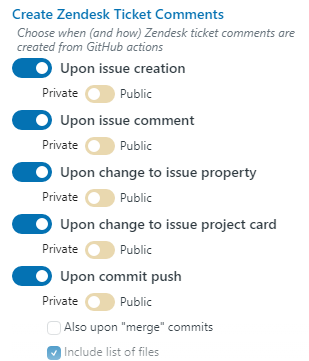
Section titled “Incoming: platform to Zendesk”The Create Zendesk Ticket Comments section of the settings controls which platform events add a comment to the linked Zendesk ticket. For each event, the Internal / Public switch sets whether the comment is private or public.
- Upon issue creation (work item creation on Azure DevOps): a new issue is created with a reference to the ticket. Full version only.
- Upon issue comment: someone comments on a linked issue. Full version only.
- Upon change to issue property: a linked issue changes, for example it closes, reopens, or gets a new assignee. On Azure DevOps, you also choose which properties count. If you choose none, Git-Zen uses State, Assigned To, and Severity. Full version only.
- Upon release published: GitHub only. Full version only.
- Upon commit push: a commit message has a reference to the ticket. You can also include merge commits, and on GitHub and GitLab, the list of changed files. This option is also in Lite.
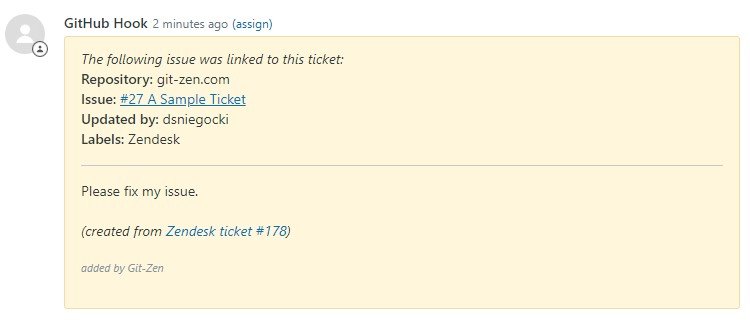
The comment contains basic information about the event. Where it applies, it also names the platform user who caused the event. This comment appeared when an issue was linked to a ticket:
Git-Zen does not add comments to a closed ticket. See Updates to closed tickets.
To filter which platform comments reach Zendesk, see Comment filters.
Skip a specific comment
Section titled “Skip a specific comment”To keep one comment out of Zendesk, put the keyword gz#skip anywhere in the comment.
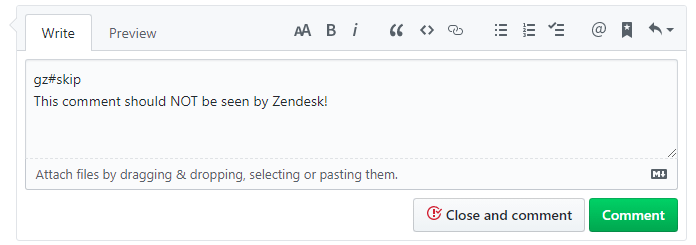
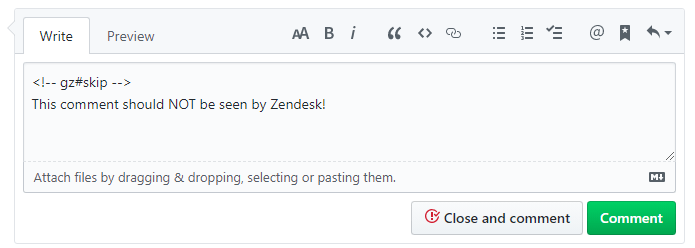
To hide the keyword when the comment appears on your platform, wrap it in a Markdown comment: <!-- gz#skip -->. Git-Zen still finds it.
Force a specific comment
Section titled “Force a specific comment”When Upon issue comment is off, you can still send one comment to Zendesk. Put the keyword gz#force in the comment. Git-Zen adds the comment to all linked Zendesk tickets, and removes the keyword from the text. It still uses your Internal / Public setting.
gz#force does not get around a comment filter. On Jira and Linear you do not need it, because Git-Zen copies every comment.
Make one comment public or private
Section titled “Make one comment public or private”Azure DevOps only.
To override the Internal / Public switch for one work item comment, put gz#public or gz#private in the comment. gz#public adds the Zendesk comment as public. gz#private adds it as internal.
Identity of the commenting user
Section titled “Identity of the commenting user”Git-Zen adds entries to a Zendesk ticket as the Zendesk user who authorized Git-Zen. But on GitHub, GitLab, and Azure DevOps, it tries to match the platform user who wrote a comment to a Zendesk user. If it finds a match, the Zendesk comment shows that user as the author.
Git-Zen matches the email address of the platform user to the email address of the Zendesk user. If the two addresses differ, add the platform email as a secondary email address on the Zendesk user.
Many platform users keep their email address private. Git-Zen cannot see a private address. On GitHub and GitLab, use a pseudo-email address instead.
Pseudo-email addresses
Section titled “Pseudo-email addresses”A pseudo-email address lets Git-Zen match a platform user whose email is private. Add it as a secondary email address on the matching Zendesk user. Use this form:
[github_username]@git-zen.internal
The username is the public GitHub username. For the user “SuperCoder”, add SuperCoder@git-zen.internal. Git-Zen uses it for issue comments and for commits.
GitHub sets most email addresses to private, so this is common on GitHub.
[gitlab_username]@git-zen.internal
The username is the public GitLab username. For the user “SuperCoder”, add SuperCoder@git-zen.internal. Git-Zen uses it for issue comments and for commits.
Git-Zen also still matches the older form, [gitlab_username]@git-zen.test. If you already added that address to a Zendesk user, you do not need to change it.
Git-Zen matches Azure DevOps users by email address. If the addresses differ, add the Azure DevOps email as a secondary email on the Zendesk user.
Git-Zen does not match Jira users to Zendesk users. Every Jira comment appears as the Zendesk user who authorized Git-Zen.
Git-Zen does not match Linear users to Zendesk users. Every Linear comment appears as the Zendesk user who authorized Git-Zen. The comment shows the Linear author’s name in its text.
The address does not need to exist. The domain git-zen.internal uses a reserved top-level domain (.internal; the older .test domain is also reserved, see RFC 2606). They never route real email.
Outgoing: Zendesk to platform
Section titled “Outgoing: Zendesk to platform”Send comments automatically
Section titled “Send comments automatically”Full version only.
The Send comments to linked issues section controls whether Git-Zen sends Zendesk ticket comments to every issue or work item linked to the ticket. Turn on Send all PUBLIC comments, Send all PRIVATE comments, or both.
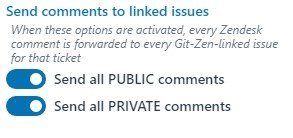
Each comment starts with Agent comment from the agent’s name and a link to the ticket. Attachments on the Zendesk comment go to the issue as links. Images go through Git-Zen’s image host, so that your platform can show them. Comment filters apply to outgoing comments too.
Git-Zen adds a small watermark (°°°) to the end of each comment that it sends. It uses the watermark to keep the comment from coming back to Zendesk.
To send one comment while both options are off, put gz#force in the Zendesk comment. To keep one comment from being sent, put gz#skip in it.
The Git-Zen trigger
Section titled “The Git-Zen trigger”When you turn on a send option, or save a mapping that sends Zendesk values to your platform, Git-Zen adds a Zendesk webhook named Git-Zen Webhook: your subdomain, and a trigger named Git-Zen - Change: your subdomain. The trigger delivers the comments. It also delivers field changes for tag/label pairs. Do not deactivate or delete either one.
If you remove the trigger by mistake, turn off both send options, save, open the settings again, and turn them back on. If you use only field mappings, save the settings again.
Send a comment manually
Section titled “Send a comment manually”You can link several issues to one ticket, and a comment that suits one issue may not suit another. To send a comment to one issue, click the comment button next to the issue in the list.
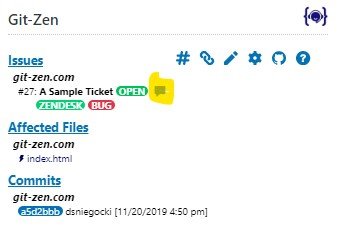
A “direct comment” window opens.
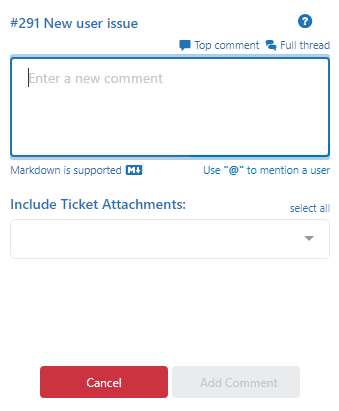
Enter your comment. The comment goes straight to the issue.
- You can format the comment with Markdown.
- On GitHub, GitLab, and Azure DevOps, when the create form shows the Assigned To field, type
@to see a list of platform users. On Azure DevOps the list shows email addresses. On other platforms, the “@” hint does not show, and@namestays plain text. - On GitHub, GitLab, and Azure DevOps, you can add attachments from the ticket comments.
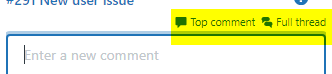
Above the text box, All fills in the whole comment thread, Latest fills in the latest comment, and OP fills in the first comment.
Click Add Comment to send the comment.
Identity of the commenting user
Section titled “Identity of the commenting user”Comments that Git-Zen sends from Zendesk to your platform always appear under the OAuth user account (GitHub, GitLab, Azure DevOps, Jira, Linear). Platforms require an authenticated user for each action. They do not let Git-Zen choose which user an action belongs to. The first line of the comment names the Zendesk agent.
Many customers create a separate user for Git-Zen, such as “Zendesk Integration” or “Git-Zen”. They use that account as the OAuth user. This makes it clear that the integration, and not a person, made the entry.