
Webhooks
What are webhooks?
Section titled “What are webhooks?”Webhooks are triggers in your platform. They activate when certain actions happen, such as when an issue or work item is updated. Webhooks send information back to Zendesk through Git-Zen. When you act in your platform, the webhook sends basic information about the action to Git-Zen. Git-Zen then finds any related Zendesk tickets and updates them.
Add a webhook to each GitHub repository you want to use with Git-Zen. For more about webhooks in GitHub, see the GitHub documentation.
Add a webhook to each GitLab repository you want to use with Git-Zen. For more about webhooks in GitLab, see the GitLab documentation.
Azure DevOps calls webhooks “service hooks”. Add webhooks to each Azure DevOps project you want to use with Git-Zen. For more information, see the Azure DevOps documentation.
Add webhooks to each Jira project you want to use with Git-Zen.
Linear uses one webhook for the whole workspace. Git-Zen creates it when you authorize Linear. You do not copy a URL into Linear, and you do not set up each team.
The webhook is named Git-Zen. It covers all public teams. It subscribes to these Linear resource types:
- Issue: created, updated, removed
- Comment: created, updated, removed
- IssueLabel: Git-Zen receives these events but does not use them. Label changes on an issue arrive as Issue updates.
For what Git-Zen does with each event, see Linear event types. For more about webhooks in Linear, see the Linear webhooks documentation.
Activate the webhooks as part of your initial installation and setup.
When you activate webhooks in Git-Zen, only the active repositories, projects, or teams appear in the drop-down lists when you create or link issues or work items. Only activate the ones you want your agents to work with.
In Lite, you can activate at most 10 repositories or projects.
Add or remove webhooks
Section titled “Add or remove webhooks”You can activate the webhooks you need in the Git-Zen app.
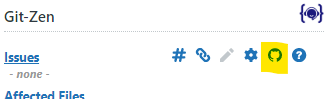
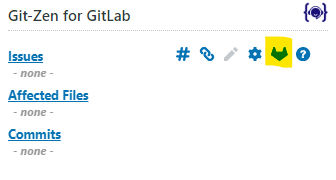
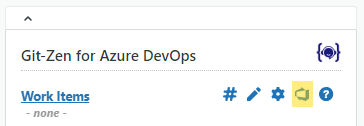
- Click the Webhooks icon in the Git-Zen menu bar.
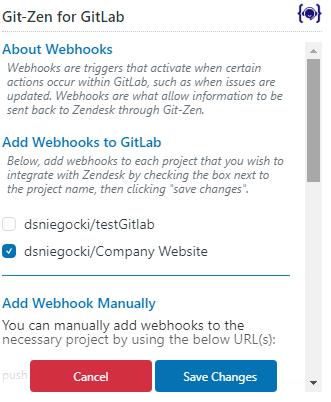
- Git-Zen lists your available repositories, projects, or teams. Select the ones you want to be active for Git-Zen.
- Click Save Changes.
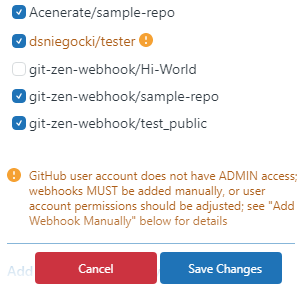
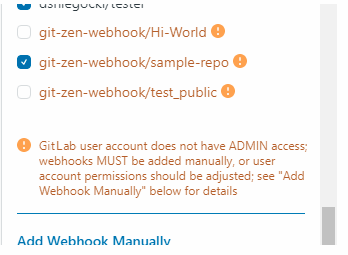
Repositories with non-admin access. If you are not an admin of a repository, you can still activate it. But Git-Zen does not have permission to add the webhook. A user with admin access to the repository must add the webhook manually. Git-Zen marks repositories you cannot administer with a yellow exclamation point.
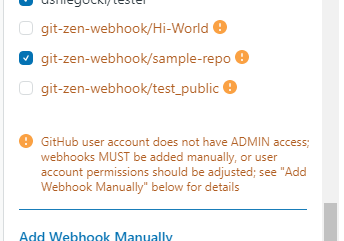
Projects without the Maintainer role. Git-Zen needs the Maintainer role (or higher) on a GitLab project to add the webhook. If you have a lower role, you can still activate the project. A user with the Maintainer role must add the webhook manually. Git-Zen marks these projects with a yellow exclamation point. Git-Zen does not add webhooks to archived projects.
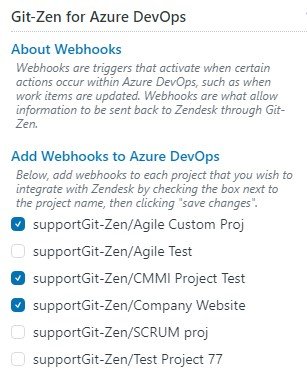
When you activate a project, Git-Zen adds service hooks for Work item created, Work item updated, Work item deleted, Work item commented on, Code pushed (Git), and Code checked in (TFVC). A project uses only one type of version control, so one of the two code hooks fails. That is normal.

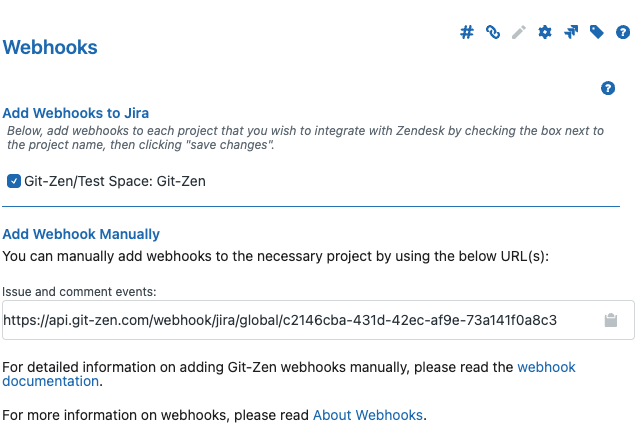
Git-Zen registers the Jira webhooks for you through the Jira API when you save.
The Git-Zen Webhooks screen lists every team in your Linear workspace with a check box. A checked team appears in the team list when agents create or link issues. When you authorize Linear, Git-Zen checks every team.
Check the webhook in Linear. You rarely need to change the webhook in Linear. To check that it exists, open the API settings of your Linear workspace and find the webhook list. You should see one webhook named Git-Zen. Its URL starts with https://api.git-zen.com/webhook/linear/global/.
If the webhook is missing or disabled, open the Git-Zen Webhooks screen, check at least one team, and click Save Changes. Git-Zen creates a new webhook. You can also re-authorize Git-Zen from the Help menu. Git-Zen then creates a new webhook and checks every team again.
Change the OAuth user. If the Linear user who authorized Git-Zen leaves your workspace, re-authorize Git-Zen as a different workspace Admin. See Linear OAuth user.
Add webhooks manually
Section titled “Add webhooks manually”Some Git-Zen users do not create an OAuth user token, or their company security policy forbids it. In that case, you must create the webhooks by hand in your platform. This applies to GitHub, GitLab, and Azure DevOps. Git-Zen creates the Linear webhook during authorization, so you do not need a manual webhook for Linear.
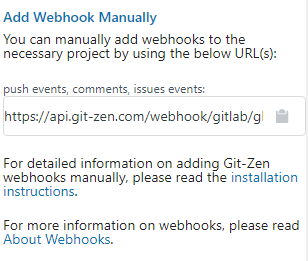
To start, click the Help menu at the top of the Git-Zen app. Find the section titled Manual platform Configuration. Only Zendesk administrators see it. It shows a unique webhook URL (or, for Azure DevOps, two URLs). Copy the URL. Git-Zen uses the same URL for every repository or project.
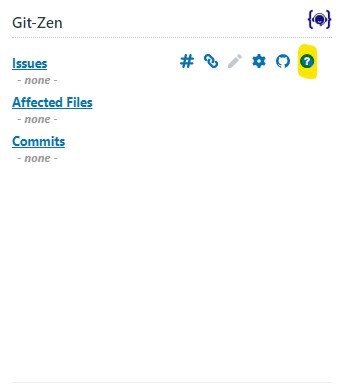
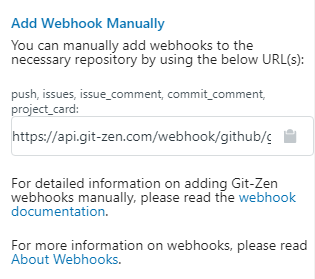
In GitHub:
- Sign in and select the repository.
- Click Settings in the top repository menu.
- Click Webhooks in the left panel.
- Click Add webhook.
- Paste the URL in the Payload URL field.
- Select
application/jsonas the content type. - Leave the Secret field blank.
- Leave SSL verification set to Enable SSL verification.
- Select Let me select individual events. Check these events: Commit comments, Issues, Issue comments, Pushes, Releases. Git-Zen needs Releases for release notifications.
- Leave Active checked.
- Click Add webhook.
Repeat for each repository you want to use with Git-Zen.
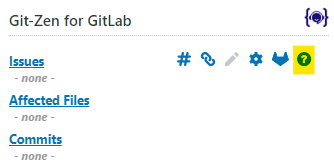
In GitLab:
- Go to the Settings page of the GitLab project.
- Click Webhooks.
- Paste the URL in the URL field.
- Leave the Secret Token field blank.
- Select Push events, Comments, Confidential comments, Issues events, and Confidential issues events.
- Check Enable SSL verification.
- Click Add webhook.
Repeat for each project you want to use with Git-Zen.
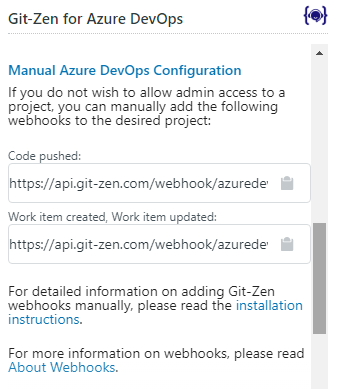
This section has two URLs. In Azure DevOps:
- Sign in and select the project.
- Go to Project Settings, then Service Hooks.
- Click Create Subscription.
- On the Trigger screen, select the event Code pushed.
- On the Action screen, paste the first URL from Git-Zen.
- You do not need other headers or authentication. Click Finish.
- Repeat steps 3 to 6 for the events Work item commented, Work item created, Work item deleted, and Work item updated. Use the second URL for these.
Repeat for each project you want to use with Git-Zen. For more information, see the Microsoft documentation about webhooks.