
Creating and Linking Issues
This page uses “issue” for GitHub, GitLab, Jira, and Linear. It uses “work item” for Azure DevOps.
Create an issue or work item
Section titled “Create an issue or work item”You can create a new issue or work item from the Git-Zen app, in any of your linked repositories, projects, or teams. Git-Zen adds a Git-Zen reference tag to the description. This links the new item to the ticket. You can create and link more than one item from the same ticket. The items can be in different repositories.
The same item can be linked to more than one Zendesk ticket.
To begin, click the Create button in the menu bar.
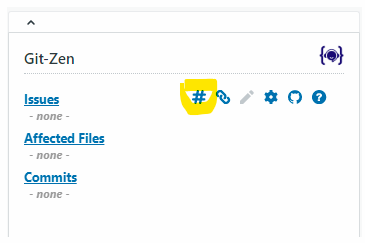
The Create Issue window opens.
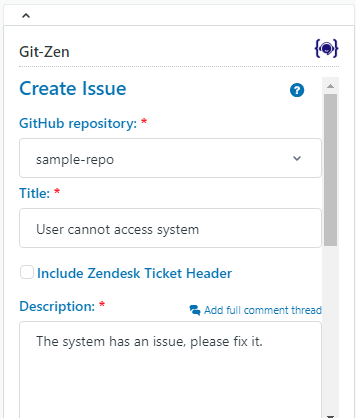
Select which linked GitHub repository to create the issue in.
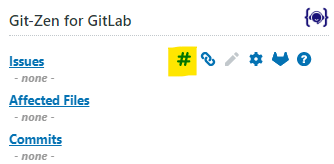
The Create Issue window opens.
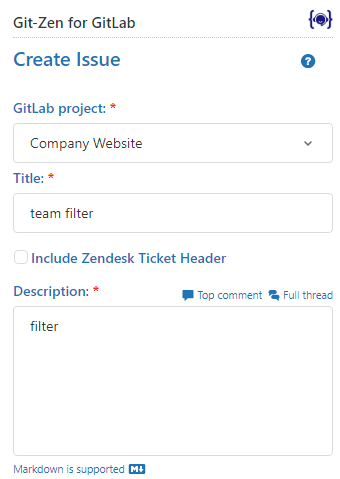
Select which linked GitLab repository to create the issue in.
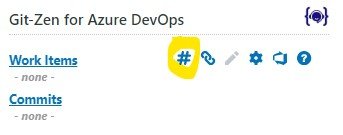
The Create Work Item window opens.
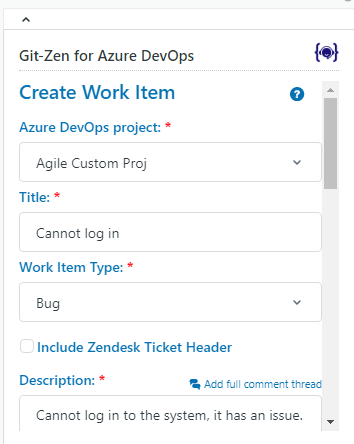
Select which linked Azure DevOps project to create the work item in.
The work item type is required. Required fields have a red asterisk next to the field name. By default, the list has all possible work item types. To limit the list, for example to only allow Bugs, or to add a custom work item type, use the work item type settings.
The Create Issue window opens. Select which linked Jira project to create the issue in.
Git-Zen creates the issue with the type Task. You cannot choose another type.
The Create Issue window opens. Select the Linear team to create the issue in.
Git-Zen fills the title with the ticket subject, and the description with the latest ticket comment. You can change both. An administrator can set a custom default title and description or a custom body format.
If an administrator set Allowed Status for Creation, the Create button works only on tickets with one of those statuses.
Templates
Section titled “Templates”If the repository has issue templates, they appear in a drop-down list.
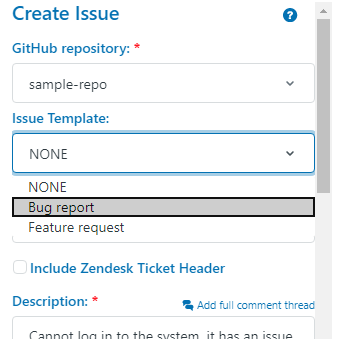
A template applies its title, description, and assignees. If the template includes labels, Git-Zen applies them in addition to the default labels in your settings.
You can set a static default description instead of the ticket description in the settings.
If the selected project and work item type have work item templates, they appear in a drop-down list.
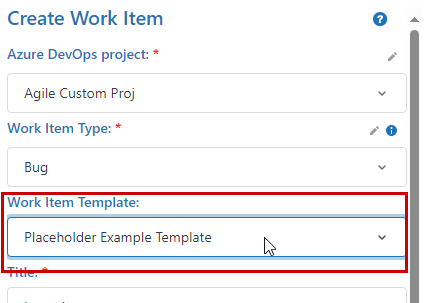
When you select a template, it fills in the fields it defines that also exist in Git-Zen, such as description, severity, and area path.
Jira has no native templates, so Git-Zen shows no template picker.
If the selected team has issue templates, they appear in a drop-down list.
Zendesk ticket header
Section titled “Zendesk ticket header”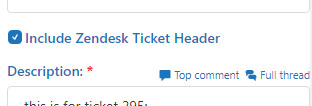
When you check Include Zendesk Ticket Header, Git-Zen adds a descriptive header with details about the Zendesk ticket to the description.
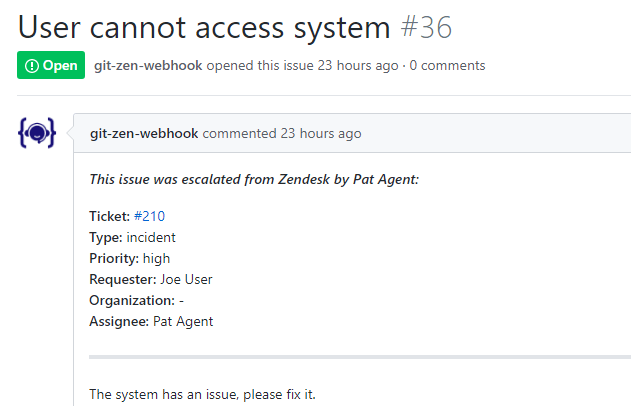
The header names the agent who escalated the ticket. It also shows the ticket number (as a link), type, priority, requester, organization, and assignee. To check the box by default, turn on Include ticket header by default in the settings.
Modify the description
Section titled “Modify the description”Use the quick links above the description field to put ticket comments in the description. Click All for the full comment thread, Latest for the latest comment, or OP for the first comment. An administrator can hide these links. If AI summaries are on for your account, a Summary link also shows. It puts an AI summary of the ticket in the description. There is no switch for this in the settings. To turn it on, contact support.
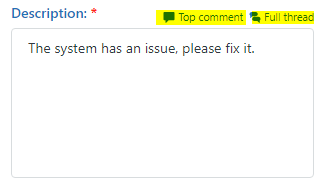
The description field supports Markdown.
On GitHub, GitLab, and Azure DevOps, when the form shows the Assigned To field, you can also type @ to see a pop-up list of users. Select a user to add the name to the text. The hint does not show on other platforms.
- On GitHub and GitLab, the list shows usernames. See the GitHub documentation about mentions.
- On Azure DevOps, the list shows email addresses. See the Azure DevOps documentation about mentions.
Include attachments
Section titled “Include attachments”If the ticket description or any comment has attachments, they appear in the Include Attachments drop-down. Select an attachment to add it to the new item. Attachments are available on GitHub, GitLab, and Azure DevOps. Jira and Linear do not support attachments from Git-Zen.
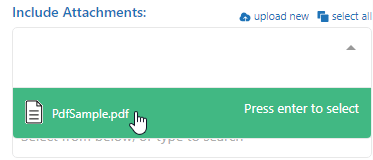
To add an attachment that is not in a ticket comment yet, click upload new.
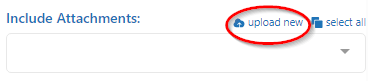
To select all attachments at once, click select all.
Additional fields
Section titled “Additional fields”Scroll down for more fields. The drop-down lists come from the configuration of the repository, project, or team you selected.
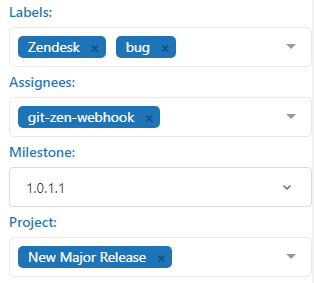
You can add labels, assign users, and select a milestone and a project. You can also type a new label to create it. The labels field starts with the default labels from your settings.
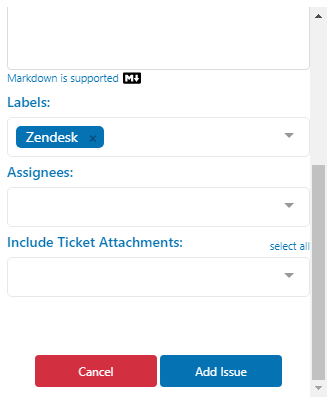
You can add labels, select a milestone, and assign users. You can also type a new label to create it. The labels field starts with the default labels from your settings.
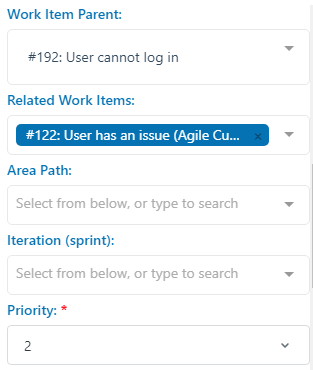
You can add tags, set priority and area path, and assign users. You can also type a new tag to create it. The tags field starts with the default tags from your settings. You choose which fields show on this screen in the settings. You can also add your own custom work item fields.
If your workflow lets you set the iteration (sprint), Git-Zen finds the current sprint from the sprint start and finish dates. It marks the current sprint with [@cur] before the name and selects it by default.
![The current sprint marked with [@cur]](/docs/images/SF0LSlkRAuWC41wK/115217211884.png)
You can set these fields. You choose which fields show on this screen in the settings.
- Labels. The field starts with the default labels from your settings. Git-Zen applies only labels that already exist in Jira. It leaves off a new label name without an error.
- Assigned To. One assignee.
- Priority.
- Due Date.
The form also shows Estimate and Status. Git-Zen does not send these two fields to Jira. The new issue starts in the project’s default status.
The form can show these Linear fields. An administrator chooses which ones show and which are required. Each list comes from the selected team.
- Issue parent. Makes the new issue a sub-issue of an open issue in the same team. To use the same parent for new issues in a team, choose it, then click set #ENG-42 as default (with your issue’s identifier). Click clear default parent to remove it. Git-Zen saves the default parent in the account settings, so it applies to every agent.
- Labels. The list has the team’s labels and the workspace labels. The field starts with the default labels from your settings. Git-Zen applies only labels that already exist in Linear. It leaves off a new label name without an error.
- Assigned To. Linear allows one assignee per issue.
- Priority: None, Urgent, High, Normal, or Low. Linear calls Normal “Medium”.
- Project. A project of the selected team.
- Milestone. A milestone of the selected project. The list loads after you choose a project.
- Due Date.
- Estimate: None, 1, 2, 3, 5, 8, 13, or 21. An estimate change in Linear later shows as Issue updated in the Zendesk comment.
- Cycle. A cycle (Linear’s sprint) of the selected team. Git-Zen shows the cycle name. If a cycle has no name, Git-Zen shows Cycle and its number, for example Cycle 14. Leave the field blank to leave the issue out of a cycle. If the team has no cycles, the field is disabled and not required.
- Status. The workflow state that the issue starts in. The list has every workflow state of the selected team. If you leave it blank, Linear uses the team’s default state. See Linear workflow states.
Git-Zen does not create or change cycles or estimation scales. Use Team settings → Cycles and Team settings → Estimates in Linear.
Git-Zen does not show or change issue relations, such as blocks, duplicate of, and related to. It does not add a Zendesk comment when a relation changes. Manage relations in Linear.
Finalize
Section titled “Finalize”When you have set all the options, click Add Issue (or Add Work Item on Azure DevOps). Git-Zen creates the item and links it to the Zendesk ticket.
If your authorization has expired or was revoked, Git-Zen does not create the item. A message tells you to re-authorize your token, or to update your personal access token. See Authorization problems.
The new item shows at once in the linked list, with the status Linking. When the webhook event arrives from your platform, the row shows the full item. If Zendesk rejects the update, the row disappears and a message gives Zendesk’s reason. If nothing confirms the link within 90 seconds, the row shows Not confirmed. See Troubleshooting.
Link an existing issue or work item
Section titled “Link an existing issue or work item”You can link an existing issue or work item from Zendesk, or from your platform.
Link from Zendesk
Section titled “Link from Zendesk”When you link an item from Git-Zen, Git-Zen adds a reference tag to its description. You can link more than one item to the same ticket. The items can be in different repositories. You can link the same item to more than one ticket.
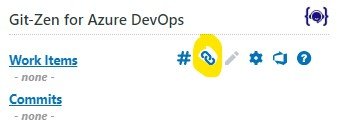
Click the Link button in the menu bar. The Link Issue (or Link Work Item on Azure DevOps) window opens.
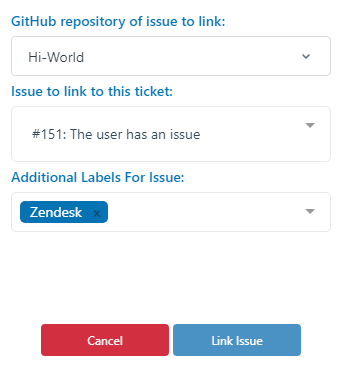
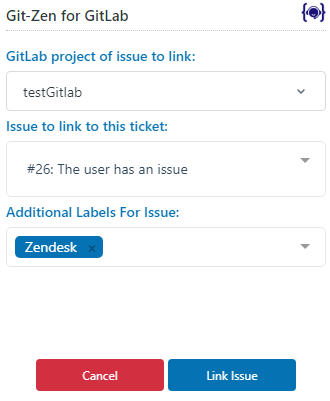
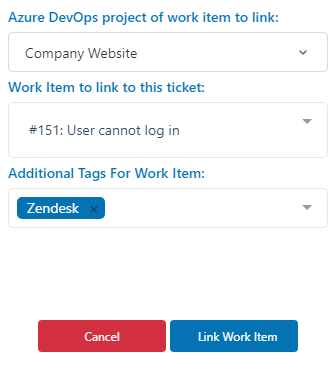
Select the project, then the issue. The list shows up to 100 of the newest issues in the project. It does not show issues whose status is in the Done category. There is no setting to change this list.
The issue list shows up to 250 open issues of the team. It does not show issues in a completed state. Type part of the title or the identifier, for example ENG-42, to filter the list.
- Select the repository, project, or team (the first drop-down) that holds the item.
- Select the item (the second drop-down). It lists open items that are not already linked to this ticket. You can search it. Type part of the title or the item number to filter the list.
- Optionally, add labels or tags in the Additional labels for issue (or Additional tags for work item) box. It starts with the default labels or tags from your settings. An administrator can turn this box off. Agents with the Limited level do not see it.
- Click the red Link button at the bottom of the window.
The list of work items only includes items of certain types and statuses. These depend on your work item type settings and work item status settings. If a work item you expect is missing, check these settings.
Link from your platform
Section titled “Link from your platform”You can also link an item, or an item you are creating, from inside your platform. Add a Git-Zen reference tag for the Zendesk ticket (or tickets) anywhere in its description, then save.
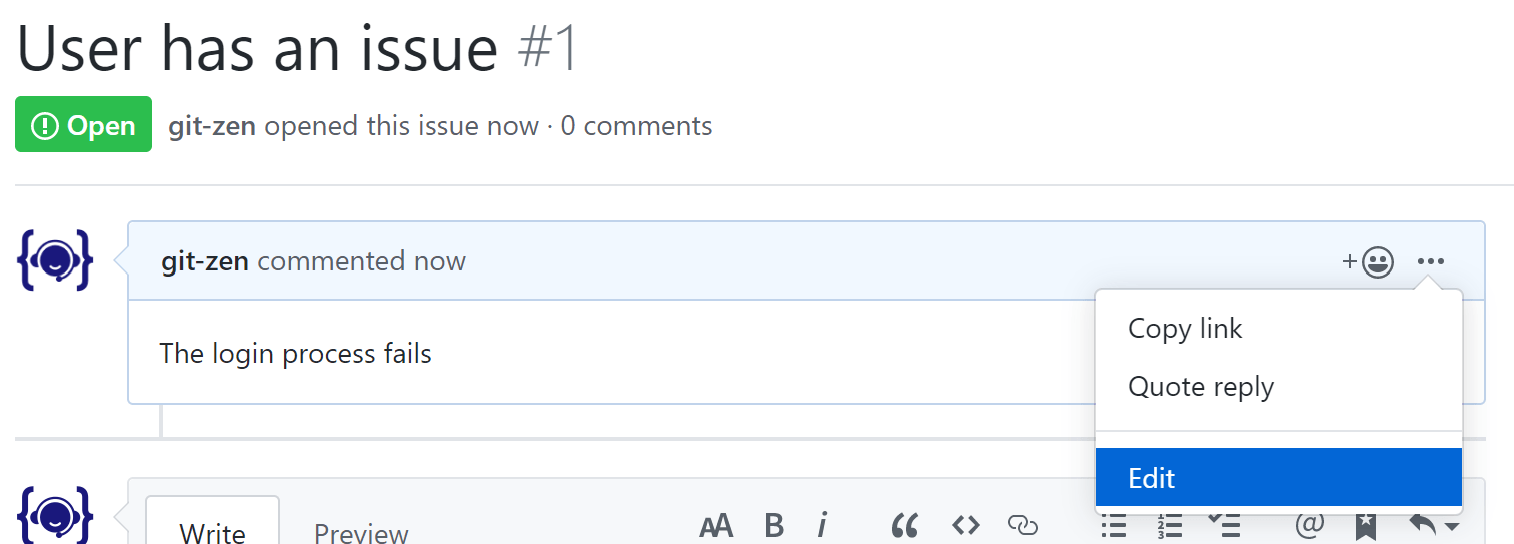
- Open the issue in your browser and click the actions button.
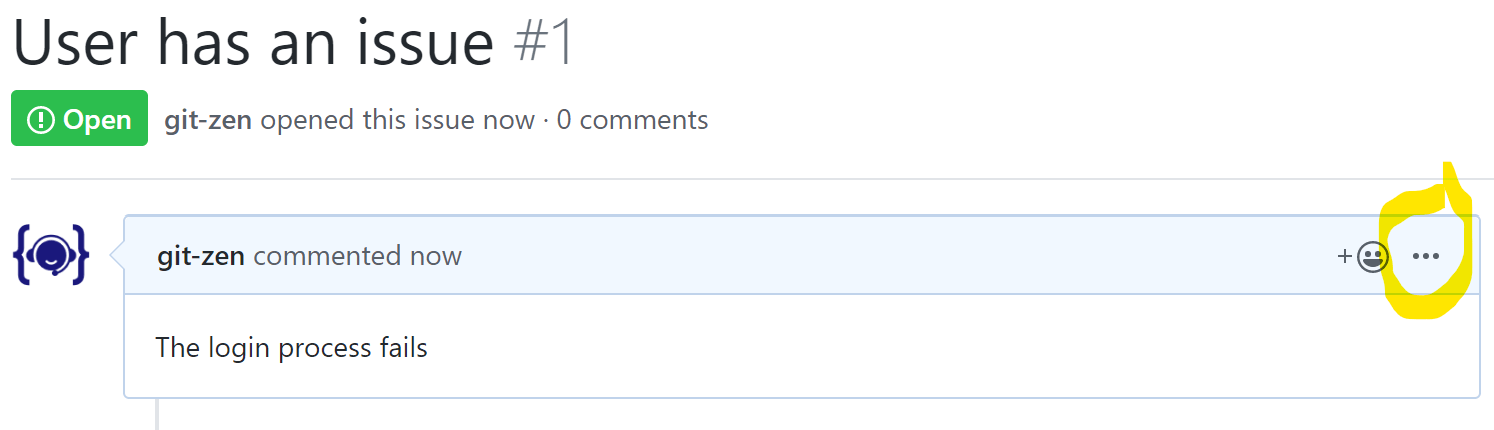
- Click Edit.
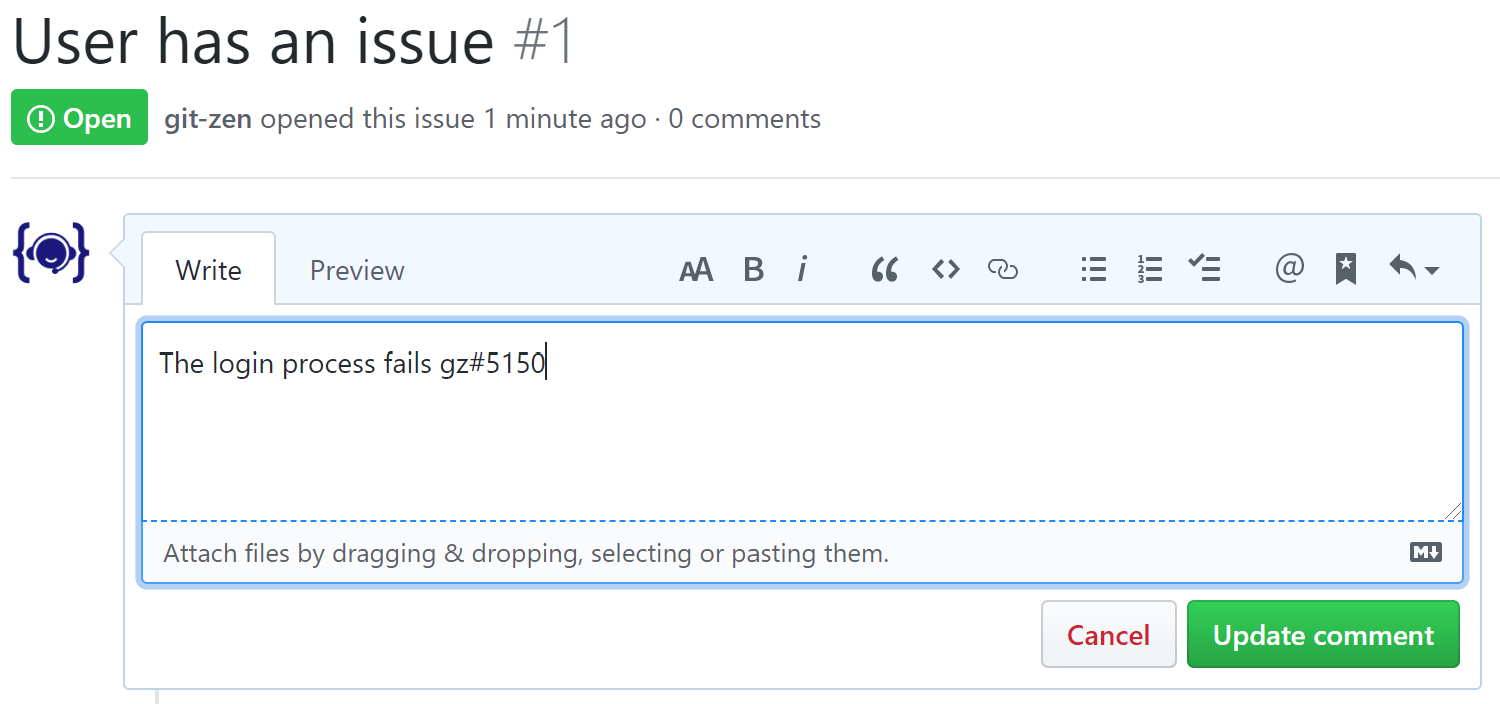
- Add the reference tag to the description and click Update comment.
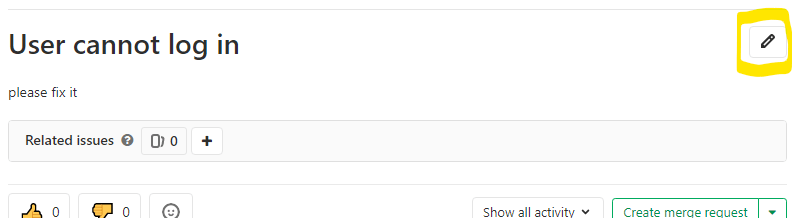
- Open the issue in your browser and click Edit title and description.
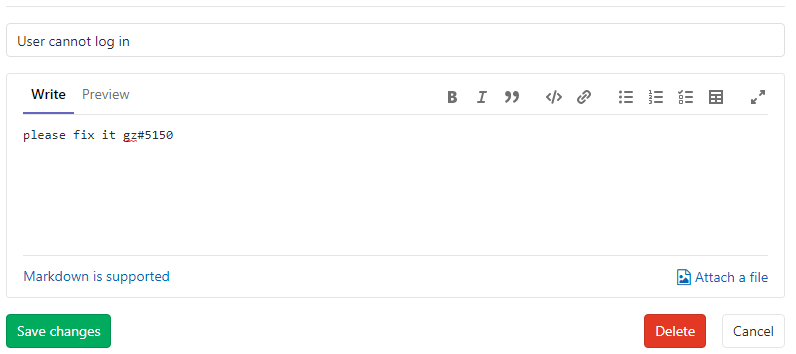
- Add the reference tag to the description and click Save changes.
- Open the work item in your browser.
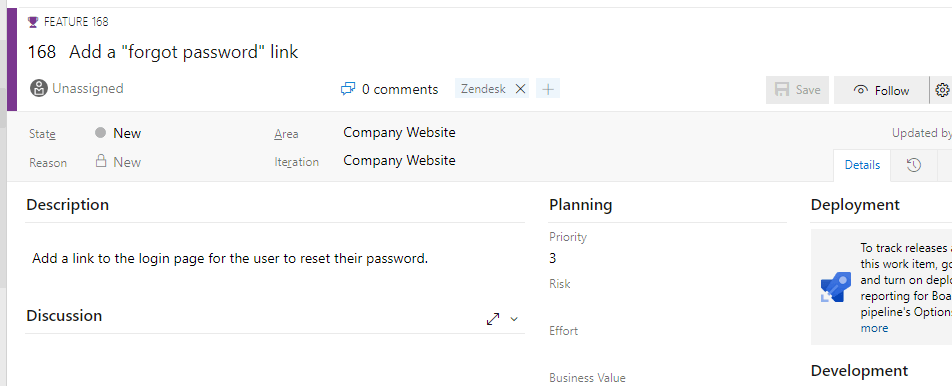
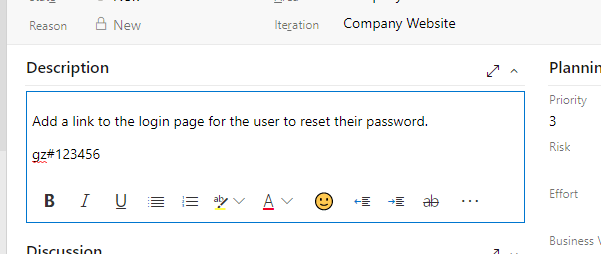
- Click in the Description section. For a Bug work item, use Repro Steps. Add the reference tag.
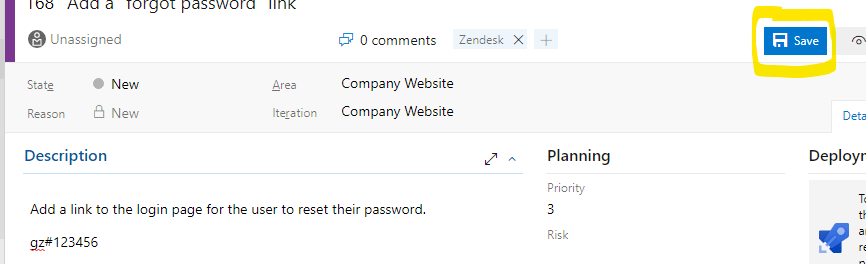
- Click Save.
Open the issue in Jira, add the reference tag to the description, and save.
Open the issue in Linear, add the reference tag (for example gz#12345) to the description, and save. A tag in a comment does not link the issue.
The Zendesk ticket now has a link to the item. The item shows in the linked items list in Git-Zen after the webhook event arrives from your platform.